Getting Started with Ductape
This guide walks you through signing up, logging in, and completing the onboarding flow to create your first workspace and product on cloud.ductape.app.
Step 1: Visit cloud.ductape.app
Open your browser and navigate to cloud.ductape.app.
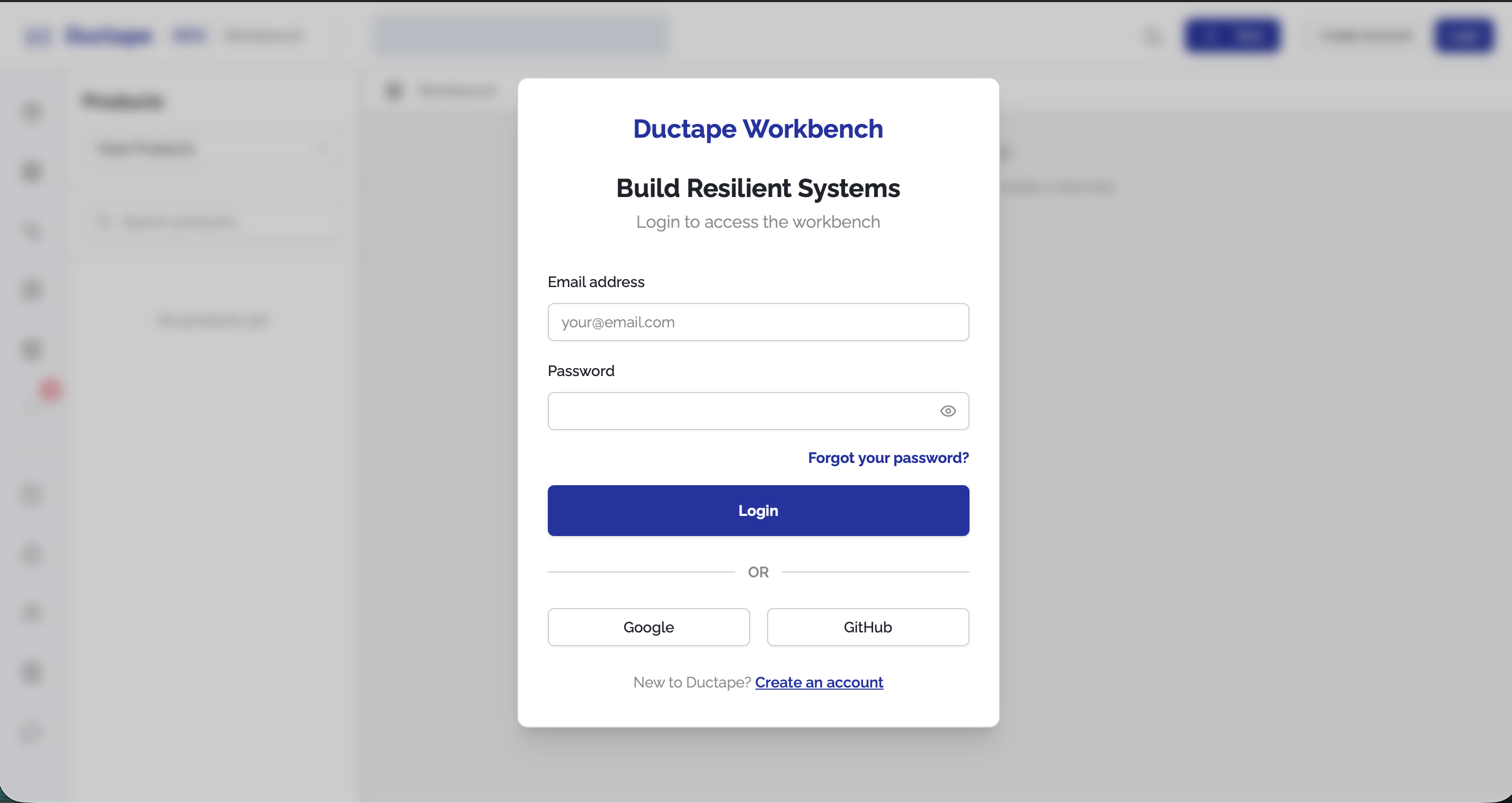
You will immediately see a login modal with the following options:
- Email & Password — log in with your credentials
- Continue with Google — sign in via your Google account
- Continue with GitHub — sign in via your GitHub account
- Create an Account — if you don't have an account yet
Step 2: Log In with Email (OTP Verification)
If you choose to log in with your email address:
- Enter your email and password and click Login.
- An OTP (one-time password) will be sent to your email address.
- You will be shown an OTP entry screen — enter the 6-digit code from your email.
- Click Verify to complete login.
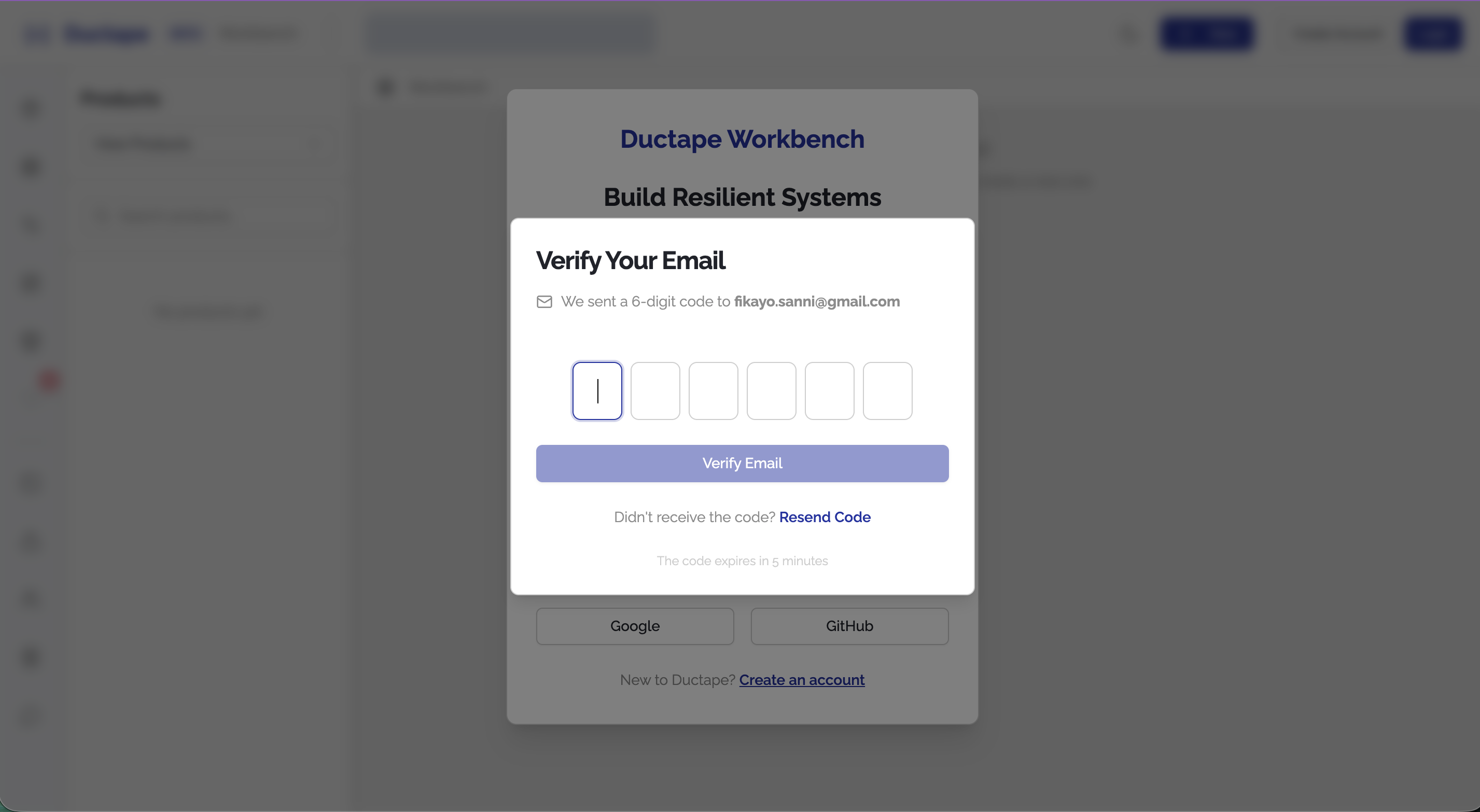
Tip: Check your spam/junk folder if the OTP email doesn't arrive within a minute. You can also click Resend code on the OTP screen.
Step 3: Create an Account (New Users)
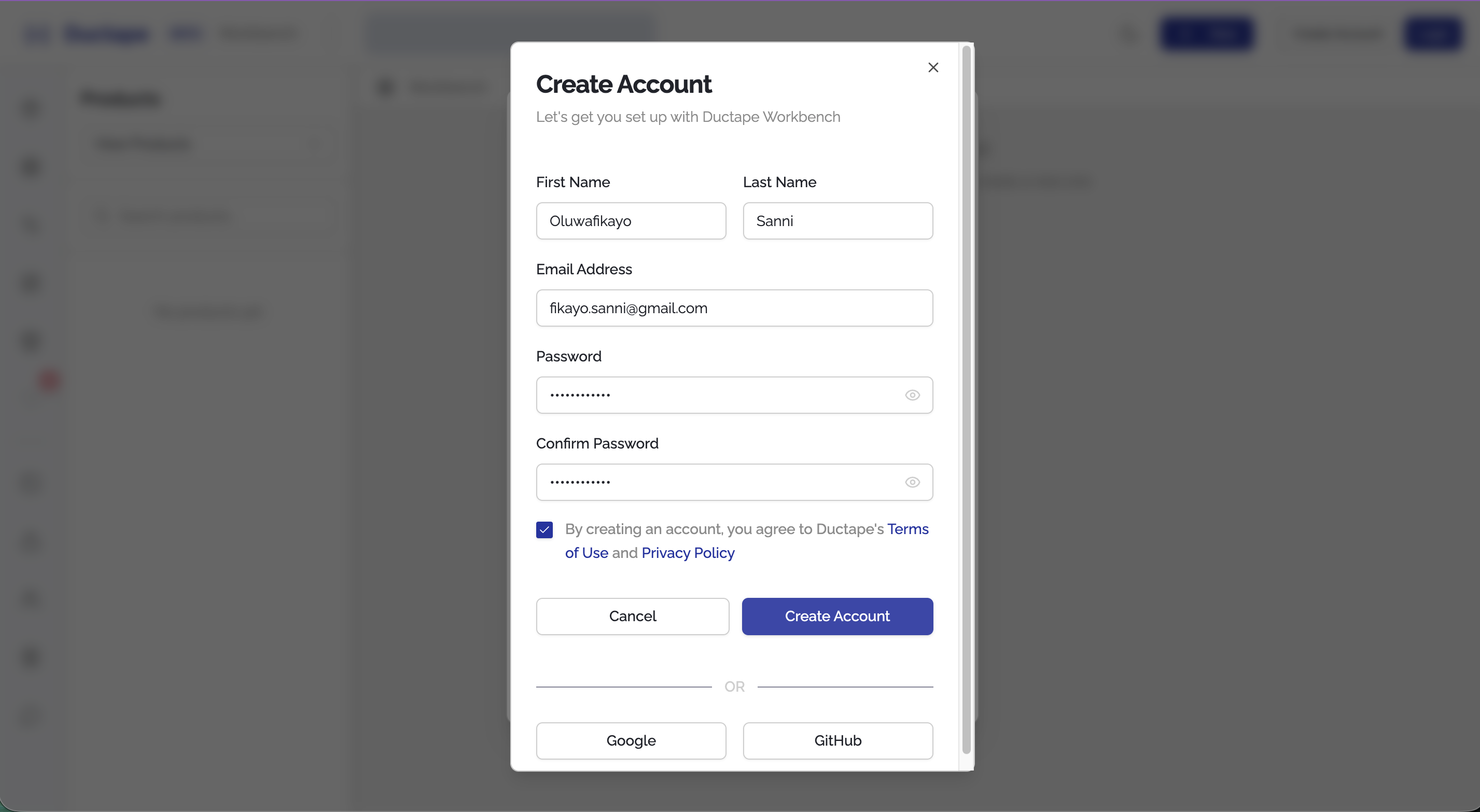
If you don't have an account, click Create an Account on the login modal.
- Fill in the registration form:
| Field | Description |
|---|---|
| Full Name | Your display name |
| Email Address | Your work or personal email |
| Password | Choose a strong password |
| Confirm Password | Repeat your password |
- Click Register, or use Register with Google / Register with GitHub to skip the form.
Step 4: Confirm Your Email (OTP for Registration)
If you registered with email:
- Check your inbox for a confirmation email containing a 6-digit OTP.
- Enter the OTP on the verification screen.
- Click Verify to confirm ownership of your email address and complete registration.
Step 5: Welcome — Complete Onboarding
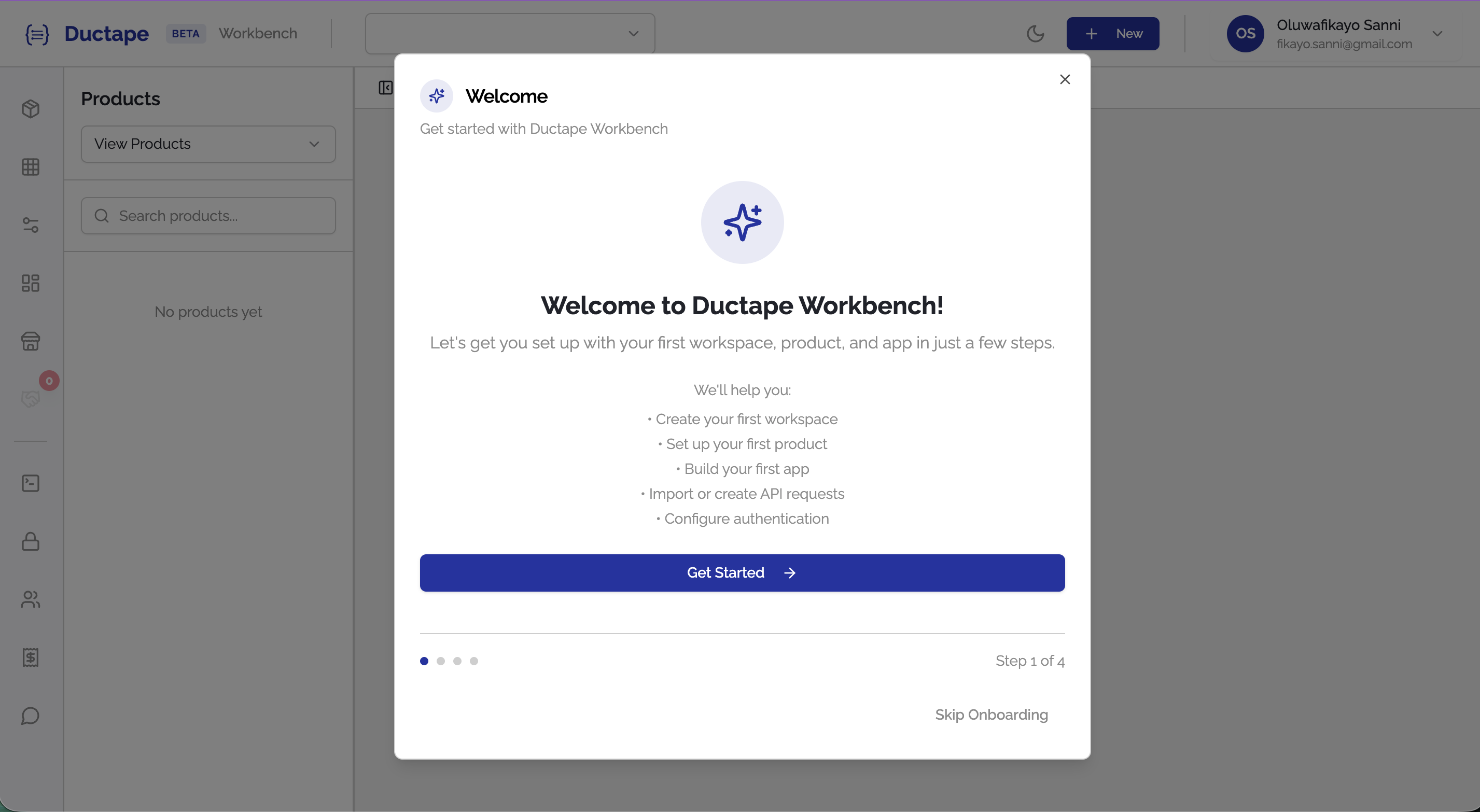
After logging in or registering, you will see the Ductape onboarding modal.
This modal guides you through the initial setup. Click Get Started to begin.
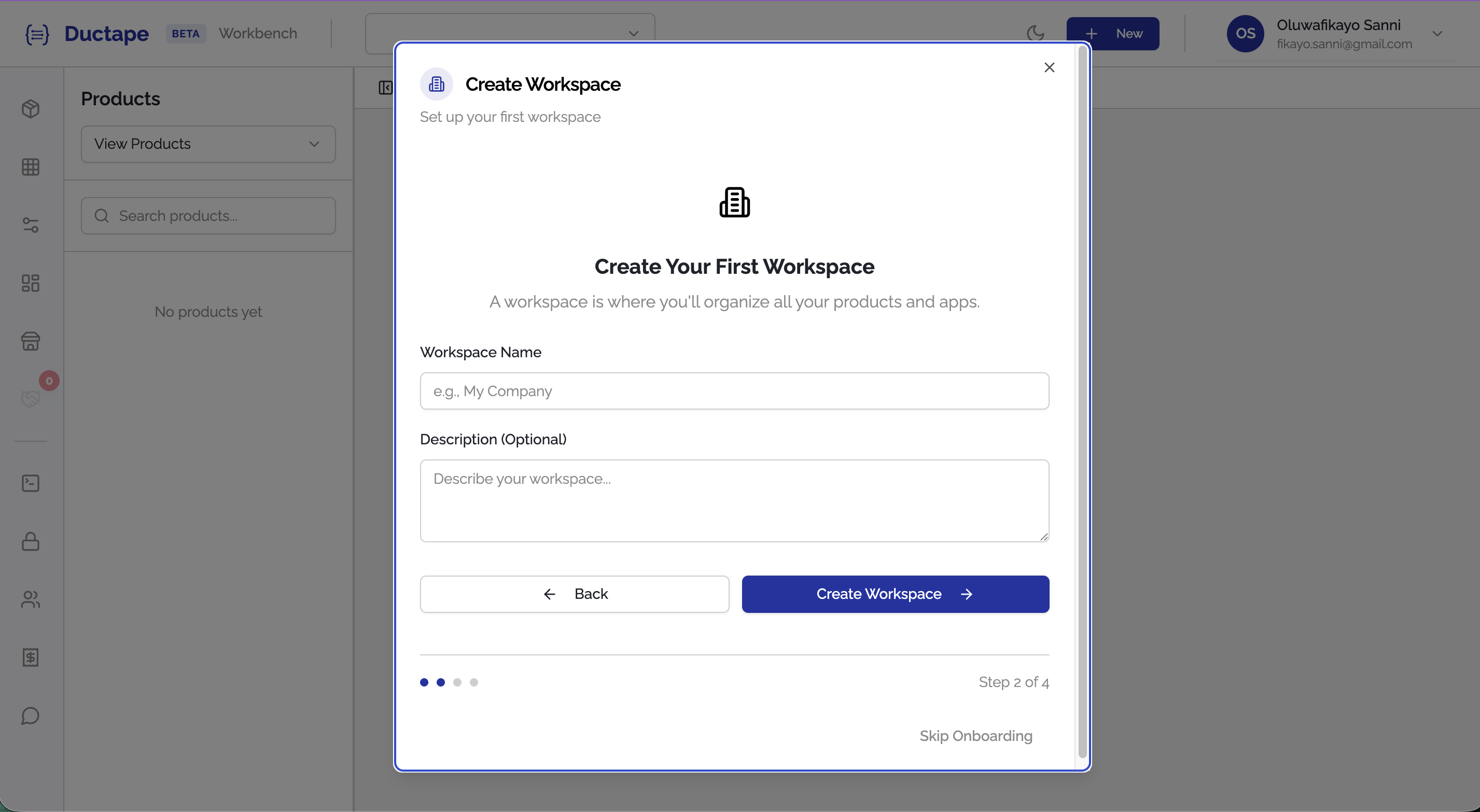
Step 6: Create Your First Workspace
The first onboarding step asks you to create a workspace.
A workspace is the top-level container for your team's products and apps.
- Enter a Workspace Name (e.g.,
Acme Corp). - Optionally enter a Description.
- Click Create Workspace to proceed.
Step 7: Create Your First Product
Next, you'll create your first product inside the workspace.
- Enter a Product Name (e.g.,
Payment API). - Optionally enter a Description.
- Click Create Product to proceed.
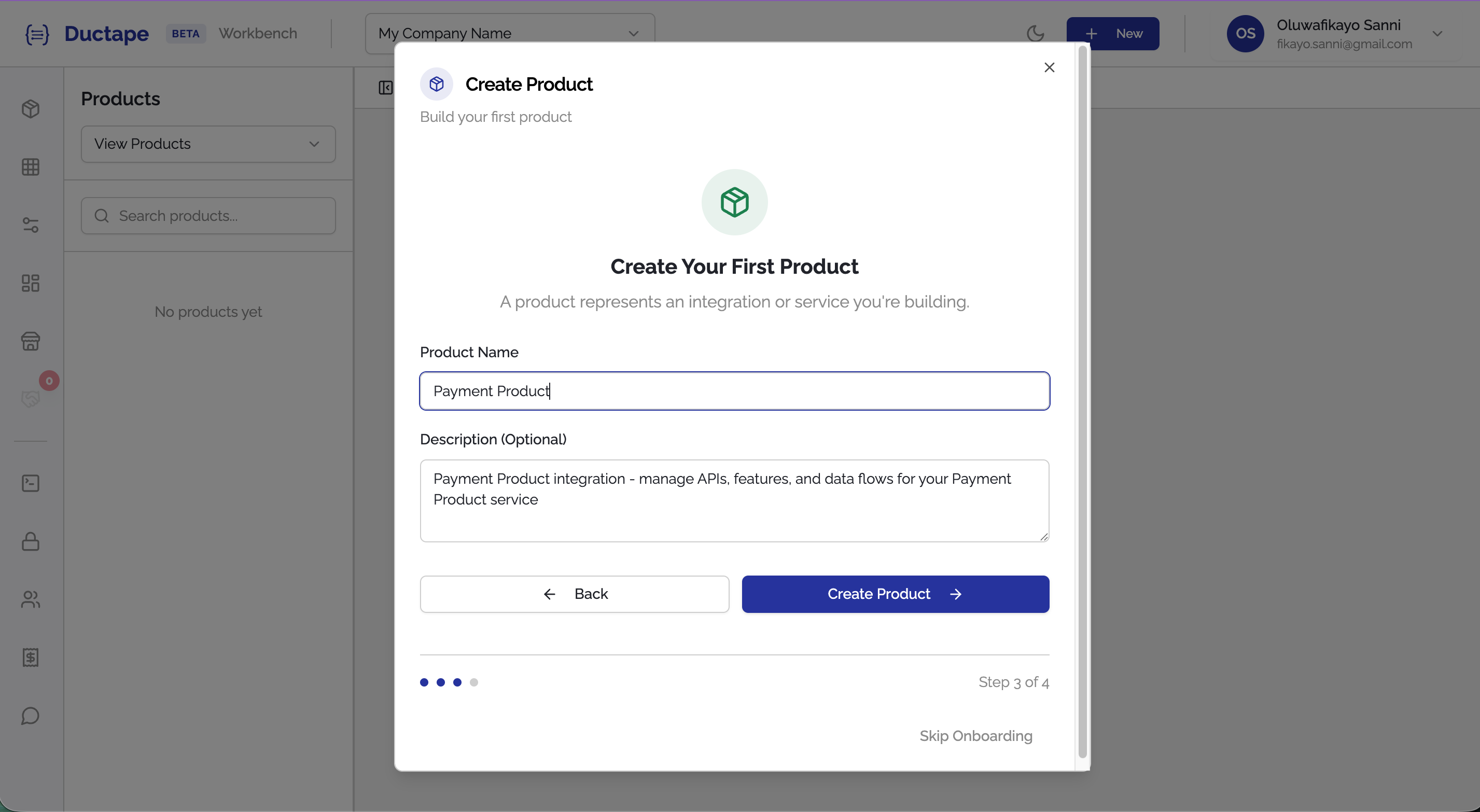
What is a product? A product is the core building block in Ductape — it is where you connect apps, databases, caches, messaging, and notifications for use via the SDK.
Step 8: You're In! 🎉
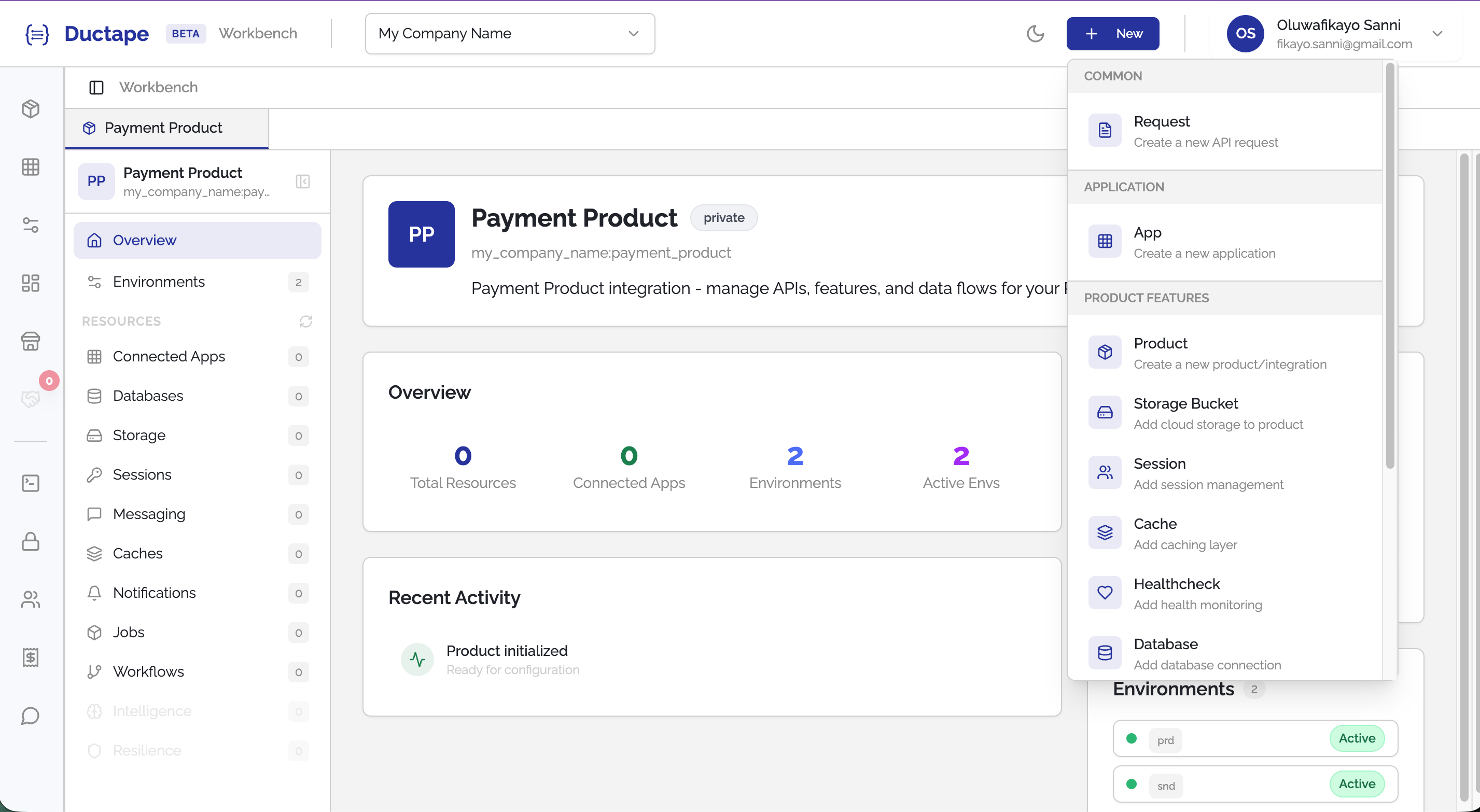
Once onboarding is complete, you'll be taken directly to your product's dashboard.
You'll see the empty product ready to be configured with apps, databases, storage, and more.
Next Steps
Now that you're set up, explore the Workbench: