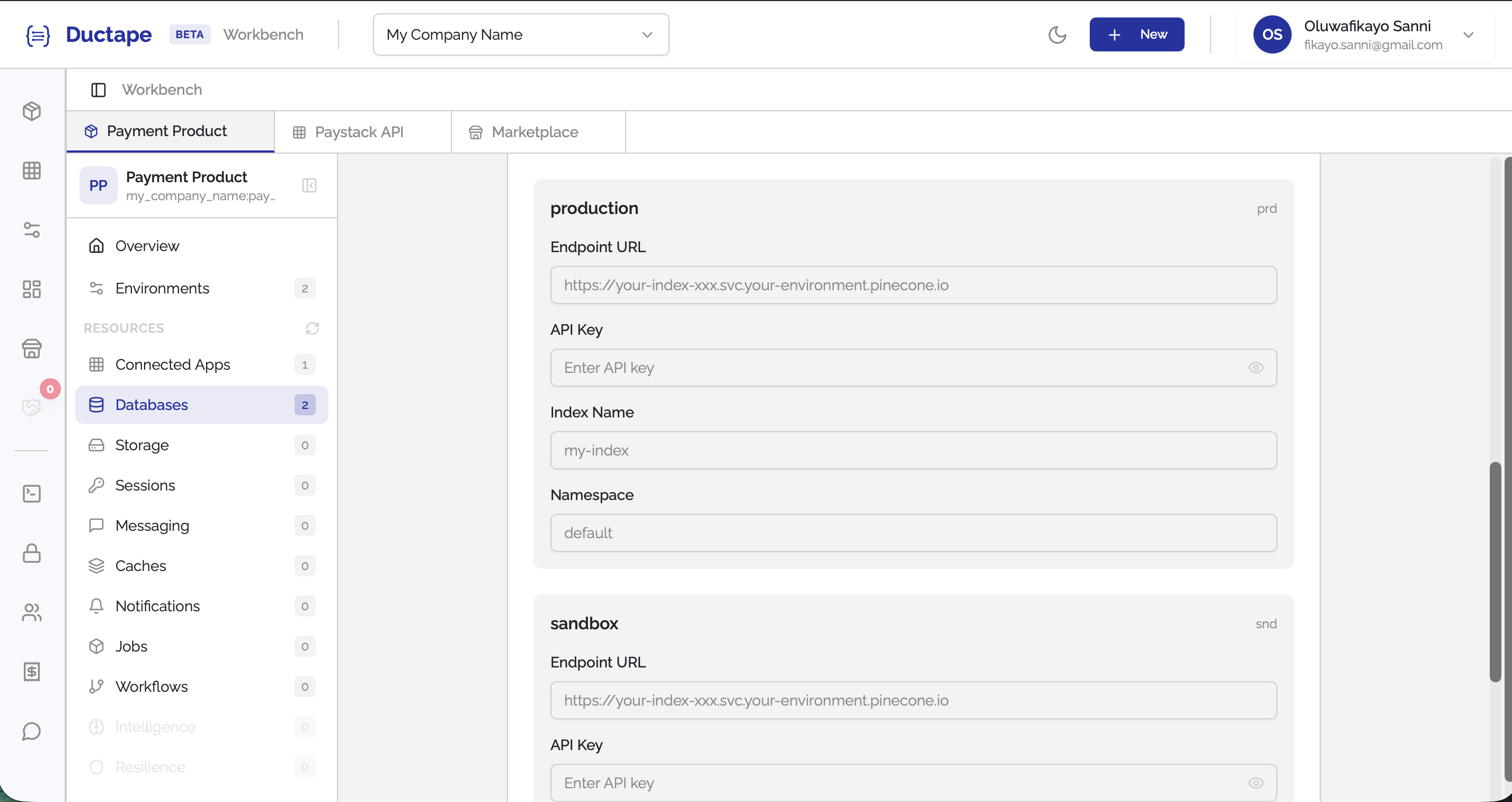
Setting up a Database
Ductape allows you to connect different types of data stores to your product, including relational databases, NoSQL databases, graph databases, and vector stores. Once configured, your product can interact with these resources for queries, pipelines, and data operations.
Step 1: Open the Database Section
- Navigate to your Workspace.
- Open the Product you want to configure.
- In the sidebar, locate the Resources section.
- Click Database (the second item under Resources).
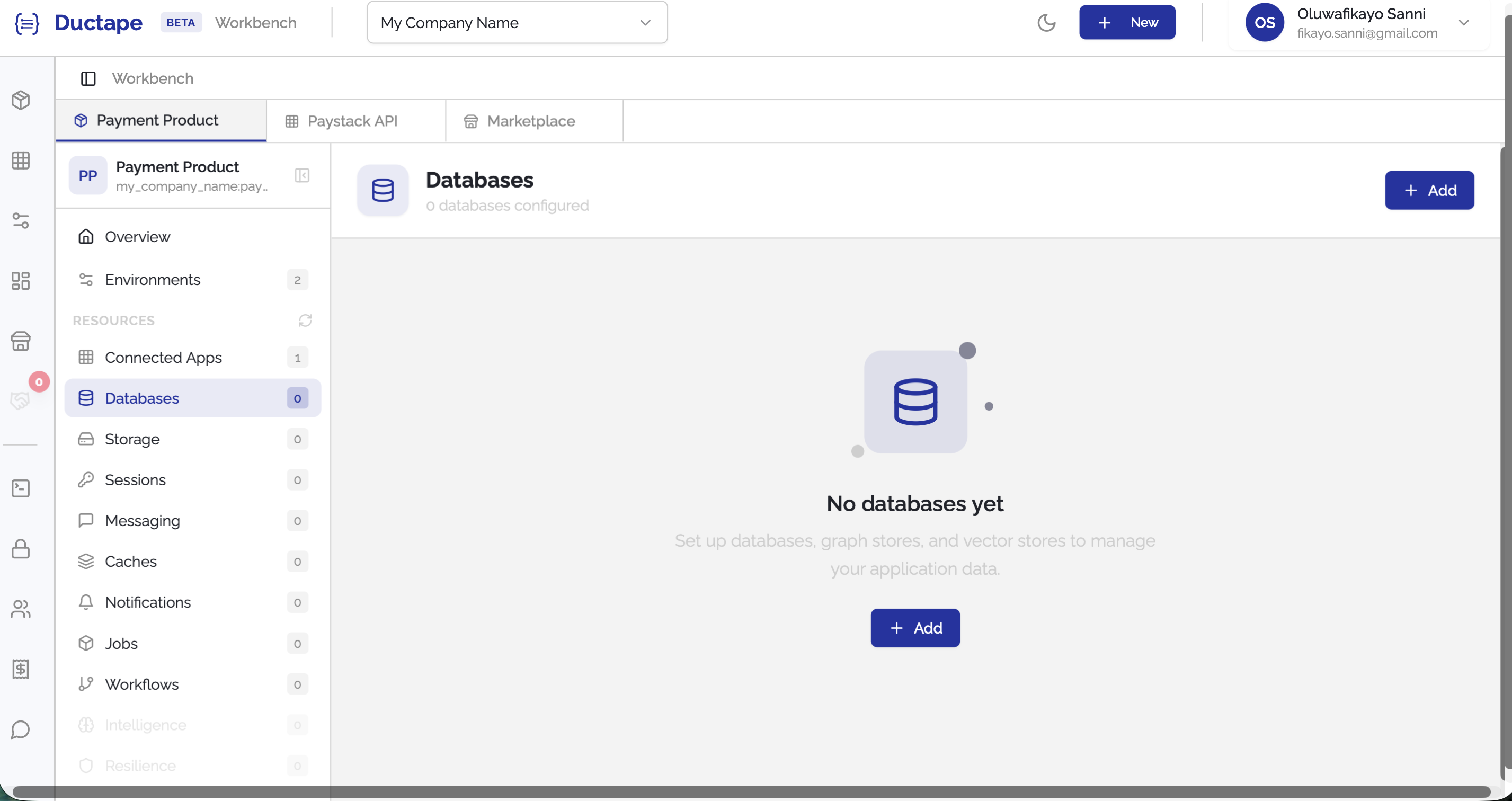
Step 2: Click "Add"
- On the Database page, click the Add button.
- A modal will appear showing the available resource types.
Available options include:
- Database
- Graph Database
- Vector Store
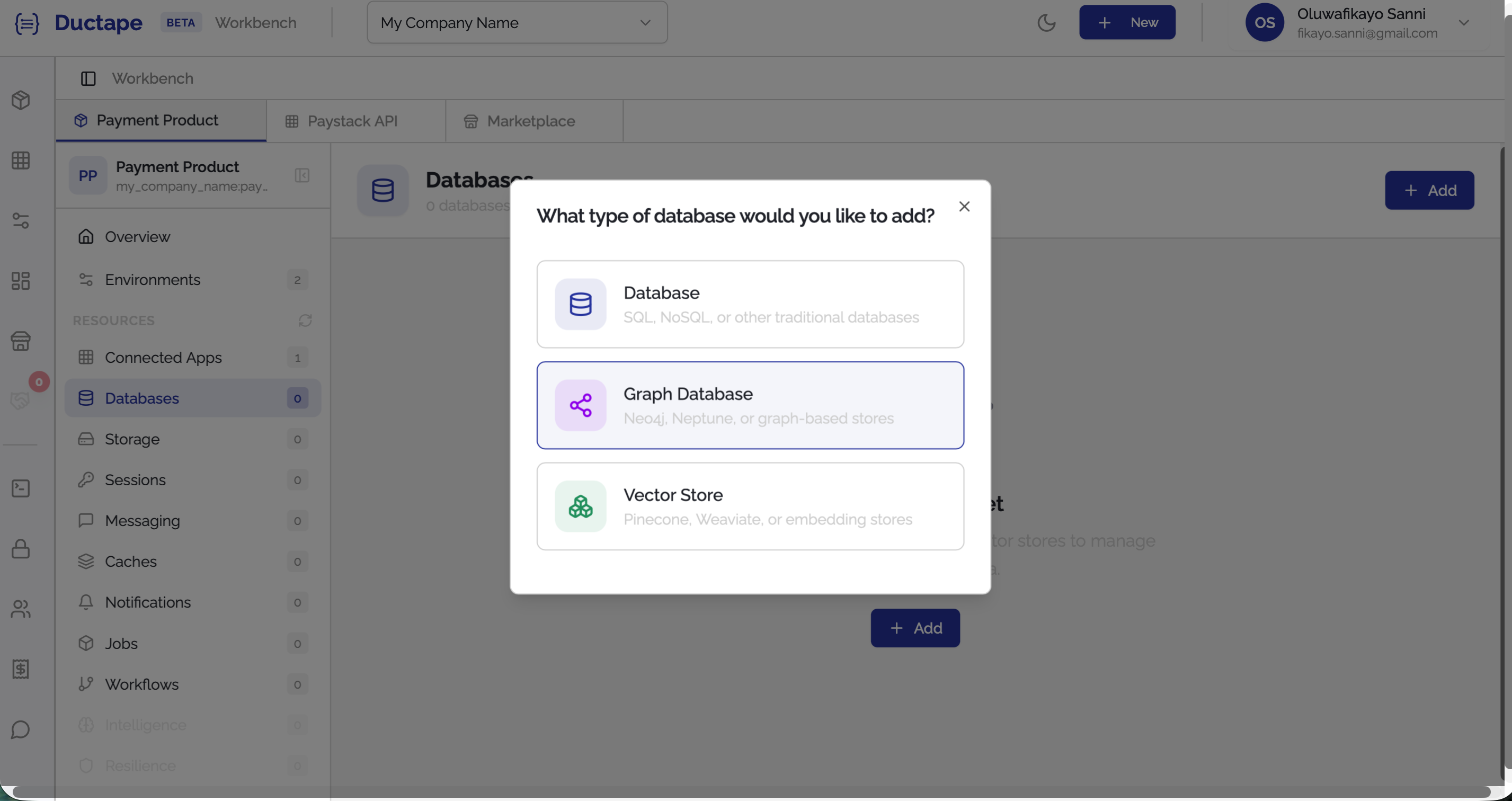
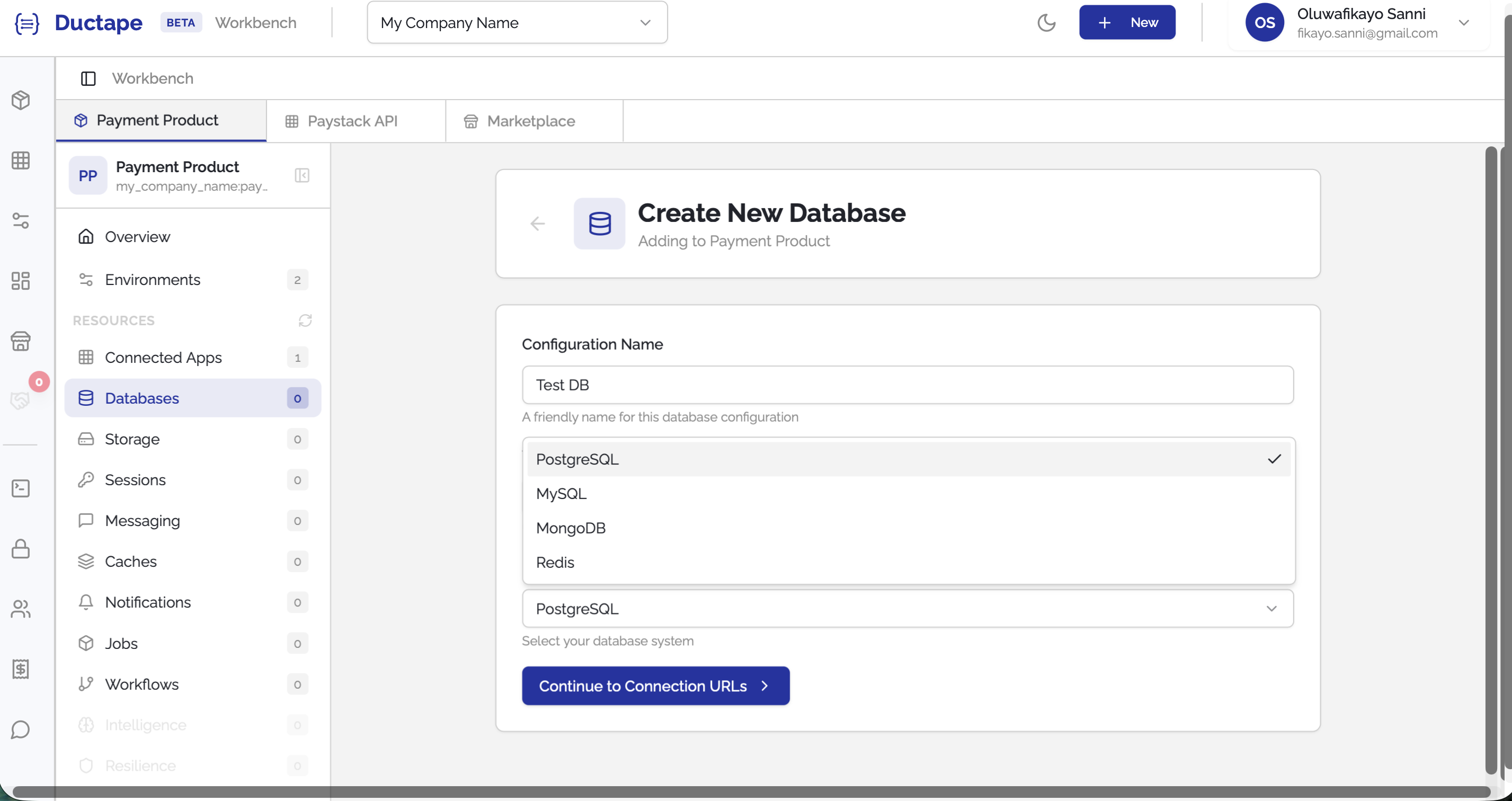
Step 3: Configure the Database
- Click Database from the modal.
- A configuration form will appear.
Fill in the following fields:
| Field | Description |
|---|---|
| Configuration Name | Human-readable name for the database connection |
| Tag | Auto-generated unique identifier (editable) |
| Database Type | Select the database provider (e.g., PostgreSQL, MySQL, MongoDB) |
- After filling in the required fields, click Continue to Connection URL.
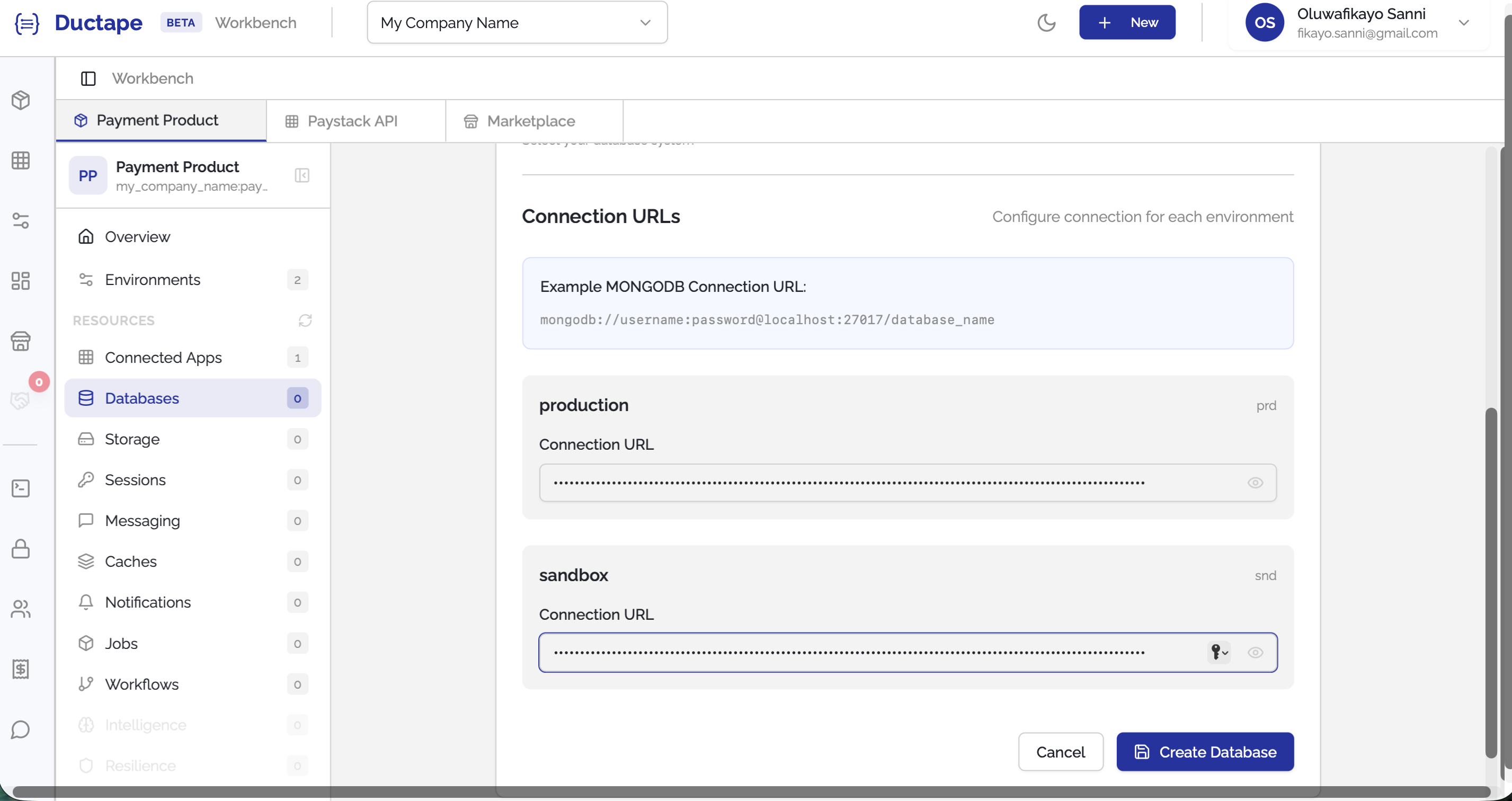
Step 4: Provide Connection Details
Next, you will be prompted to enter the connection URL for the selected database type.
Example:
postgresql://user:password@host:5432/database
- Enter the required connection information.
- Click Submit.
Step 5: Verify the Database
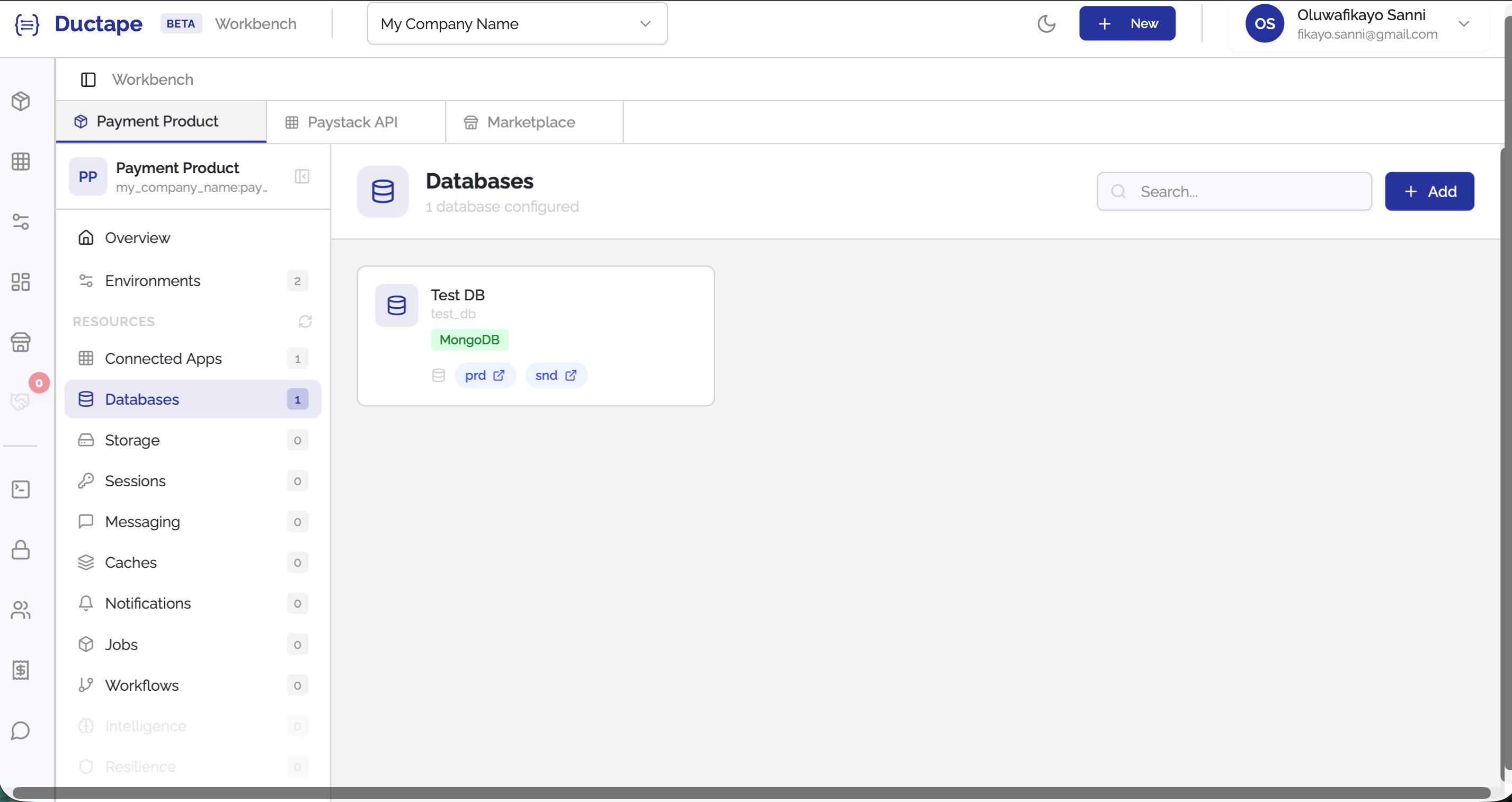
After submitting:
- The database will appear in the Product Databases list.
- You can now use this database within your product.
Graph Databases and Vector Stores
The setup flow is similar for other resource types.
Graph Databases
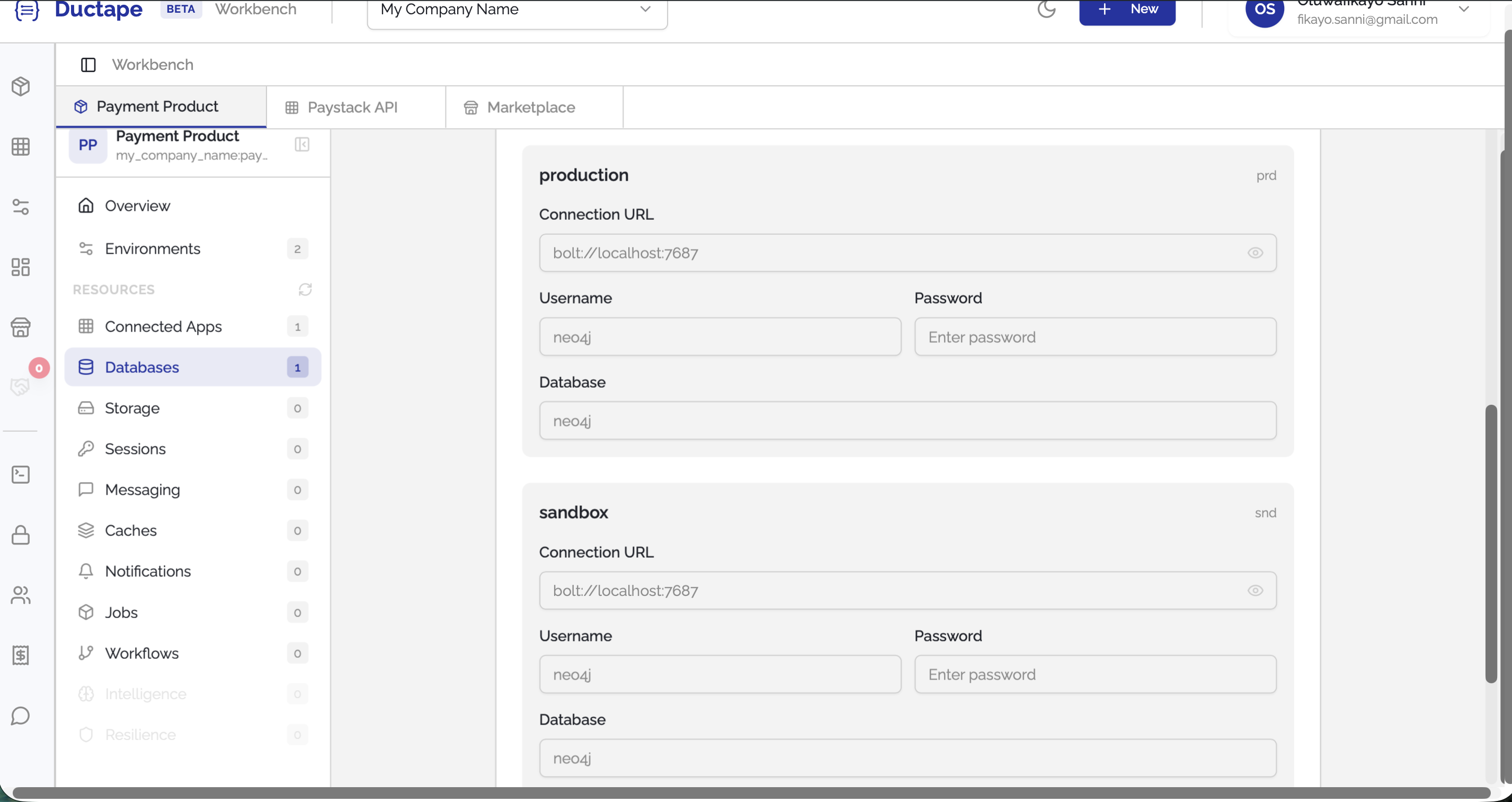
Graph databases follow the same setup process, but depending on the provider, additional configuration fields may be required beyond the connection URL.
Vector Stores
Vector stores also follow the same setup process. However, some providers require additional configuration parameters in addition to the connection URL.