Managing Secrets
Tokens are secure credentials used by services, integrations, and applications to authenticate with external systems or internal APIs.
You can manage tokens from the Tokens page in your workspace.
Step 1: Open the Tokens Page
- In your workspace sidebar, click Tokens.
- Select the Tokens tab.
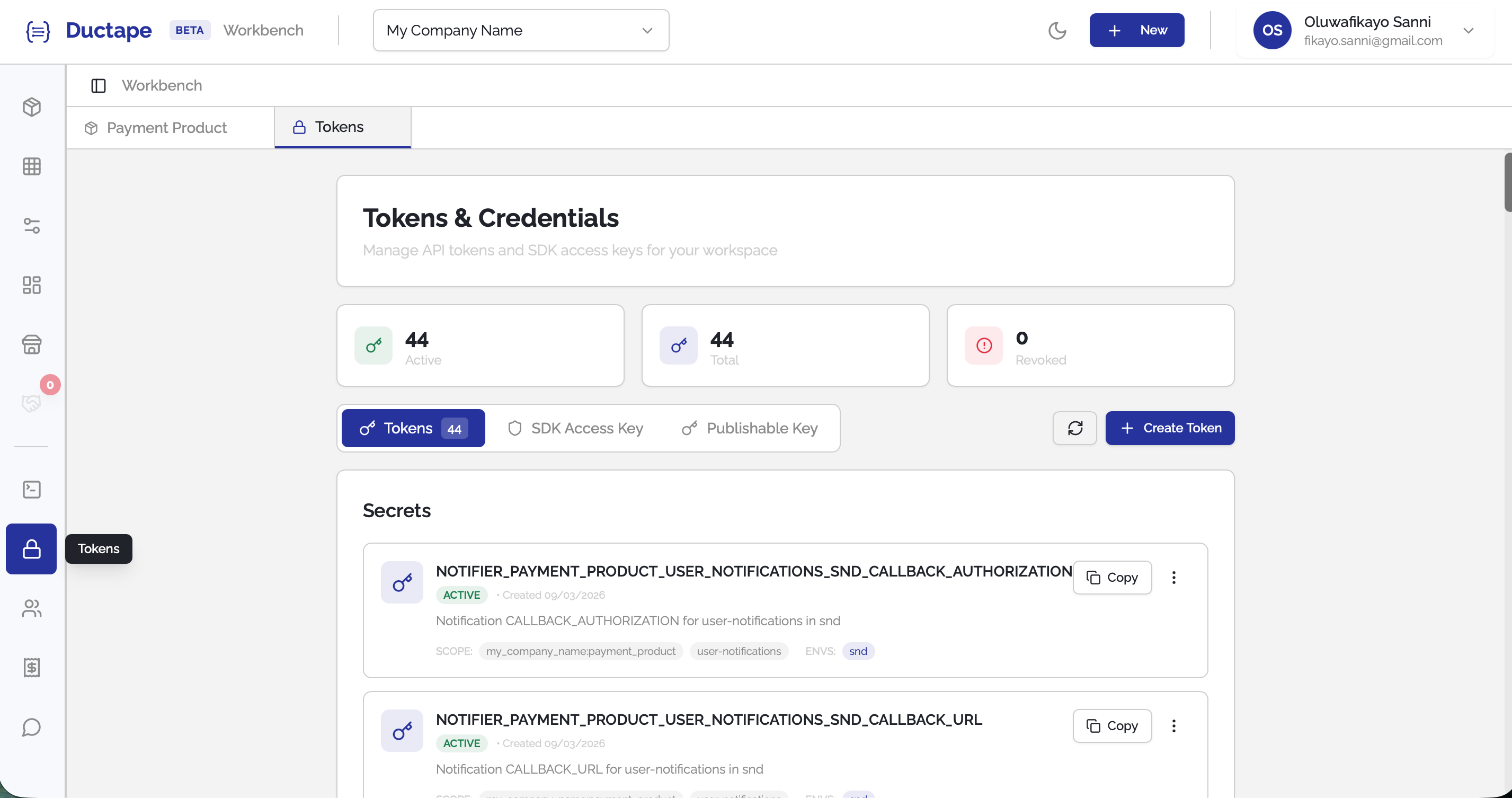
This tab displays all tokens configured in your workspace.
From here you can:
- Create new tokens
- Edit existing tokens
- Revoke tokens
- Delete tokens
Step 2: Create a Token
- Click Create Token.
- A configuration modal will appear.
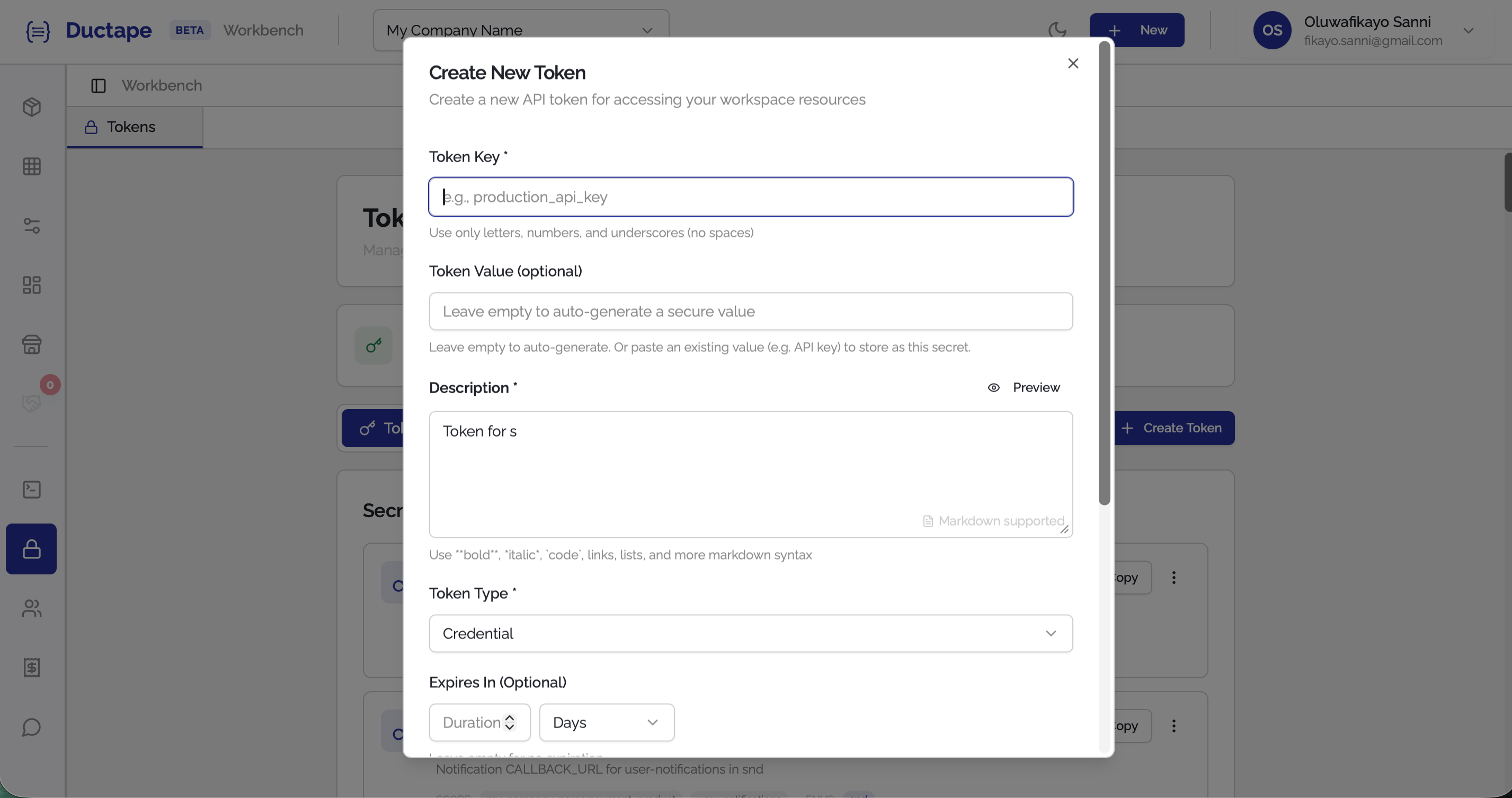
You will need to fill in the following fields.
| Field | Description |
|---|---|
| Token Key | The identifier used to reference the token |
| Token Value | The secret value of the token |
| Description | Optional explanation of what the token is used for |
| Type | The token category |
| Expiry | When the token expires |
| Scope | Products and apps allowed to use the token |
| Environment | The environments where the token is valid |
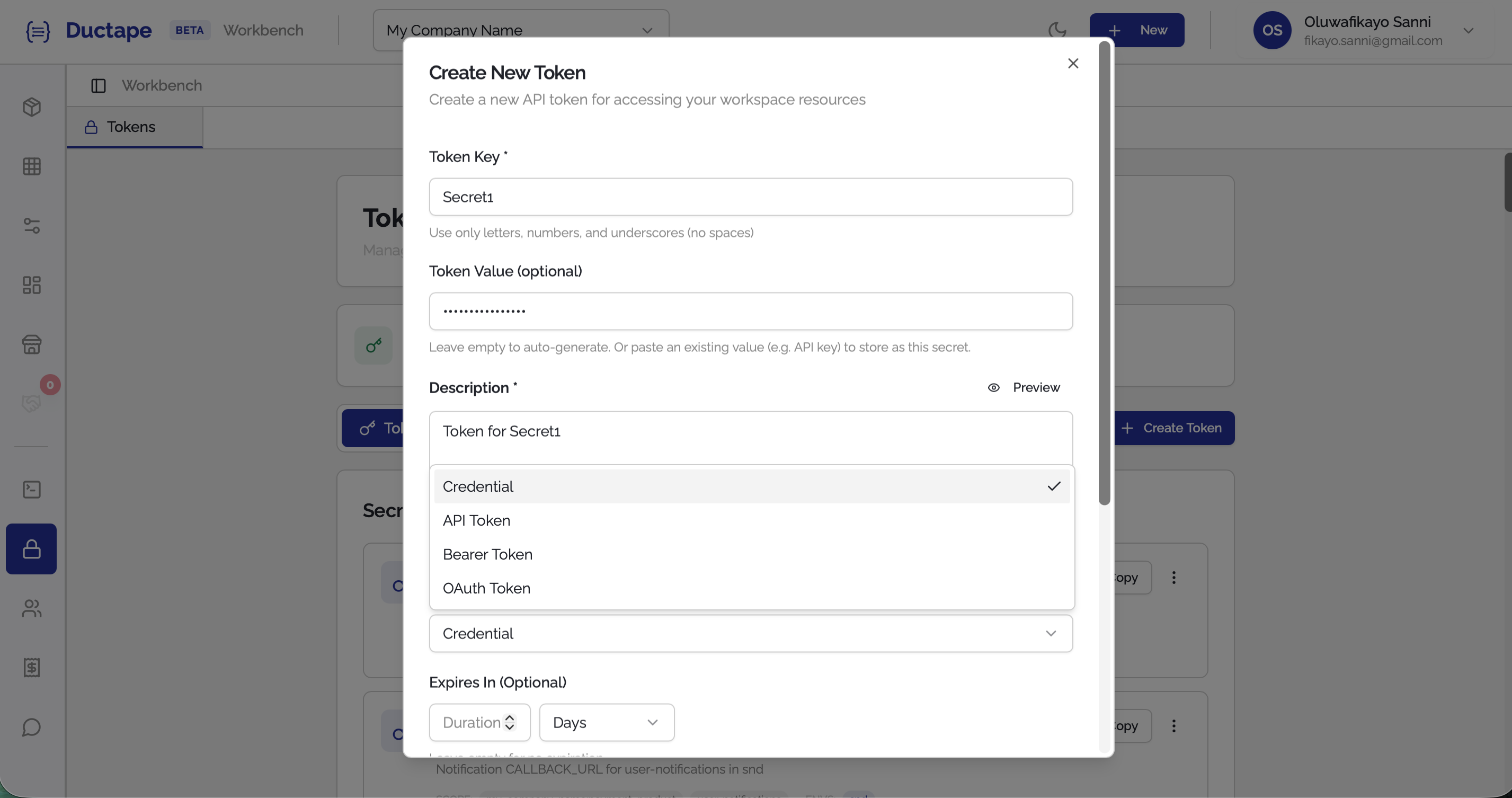
Step 3: Select the Token Type
Choose the token category that best matches your use case.
Available types include:
- Credential
- API Key
- Bearer Token
- OAuth Token
Step 4: Set Expiry
You can optionally configure token expiration.
| Field | Description |
|---|---|
| Expiry Date | When the token becomes invalid |
| Period | Token lifespan duration |
If both fields are left empty, the token will never expire.
Tip: Use expirations for temporary integrations or testing environments.
Step 5: Define Token Scope
Scopes determine which resources can use the token.
You can define:
- Products
- Apps
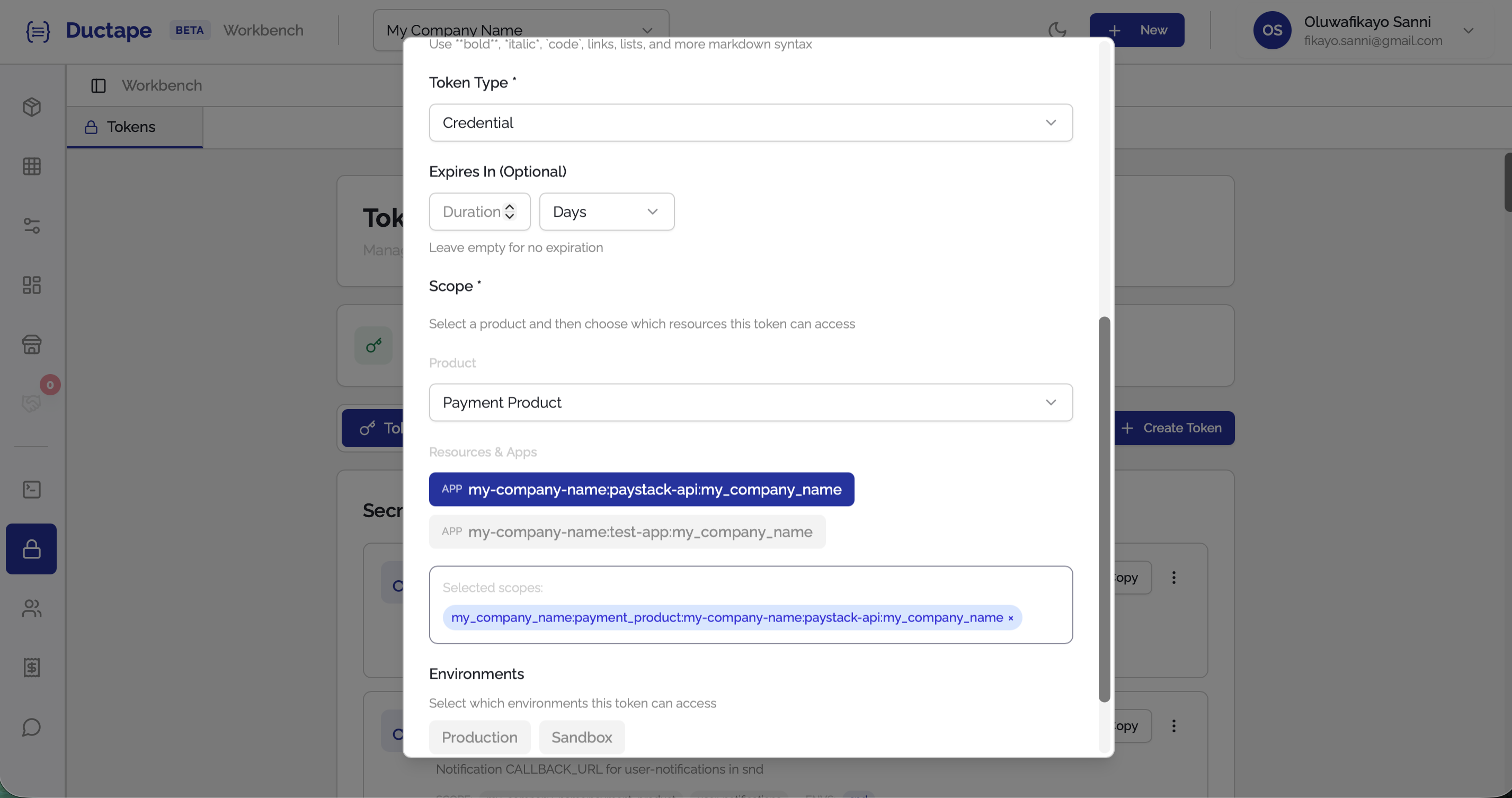
This ensures tokens are only accessible where they are needed.
Step 6: Choose Environments
Select which environments the token should be valid for.
Examples include:
- Production
- Sandbox
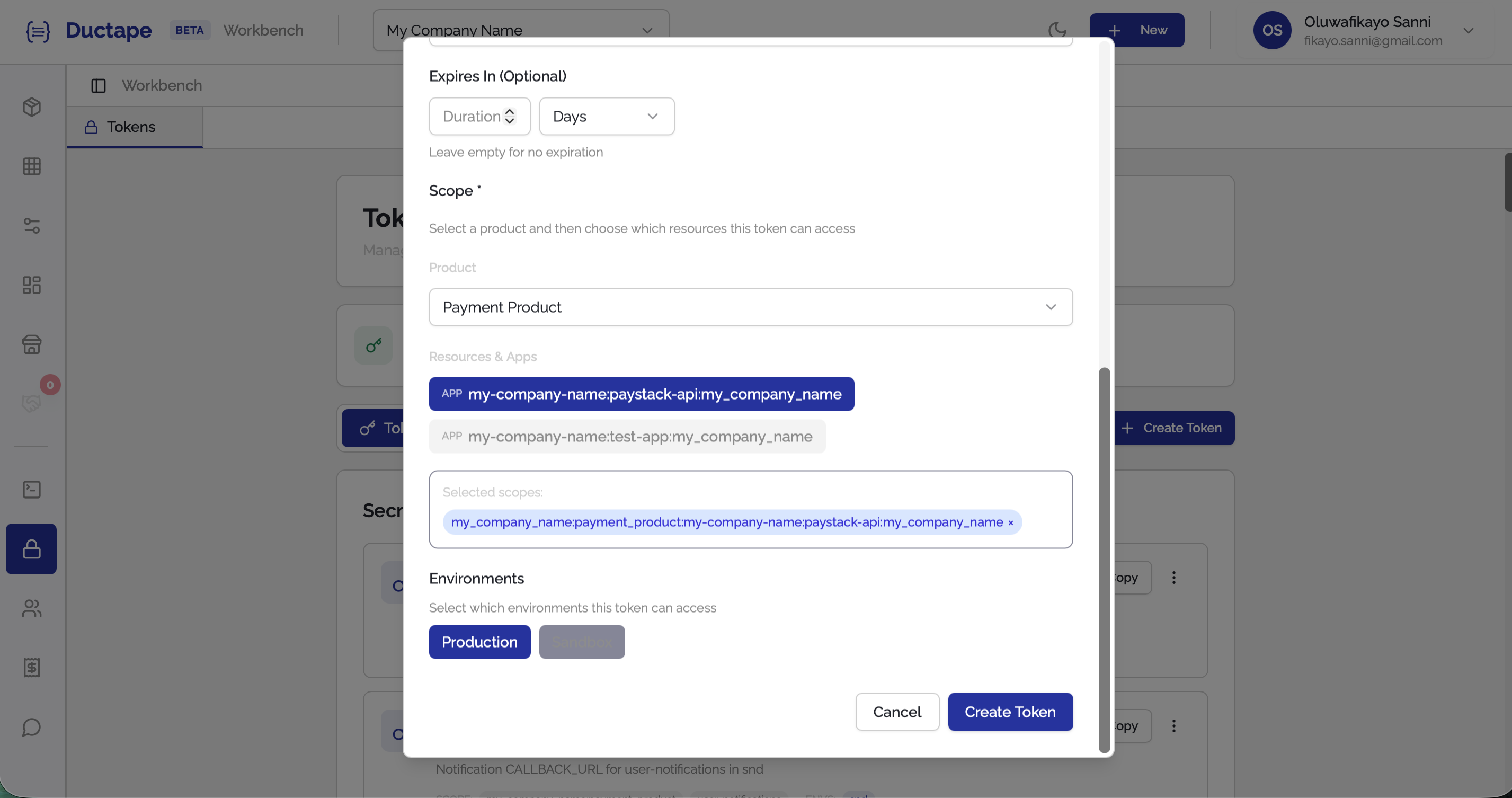
Step 7: Save the Token
Once all fields are configured:
- Click Create Token.
- The token will appear in the tokens table.
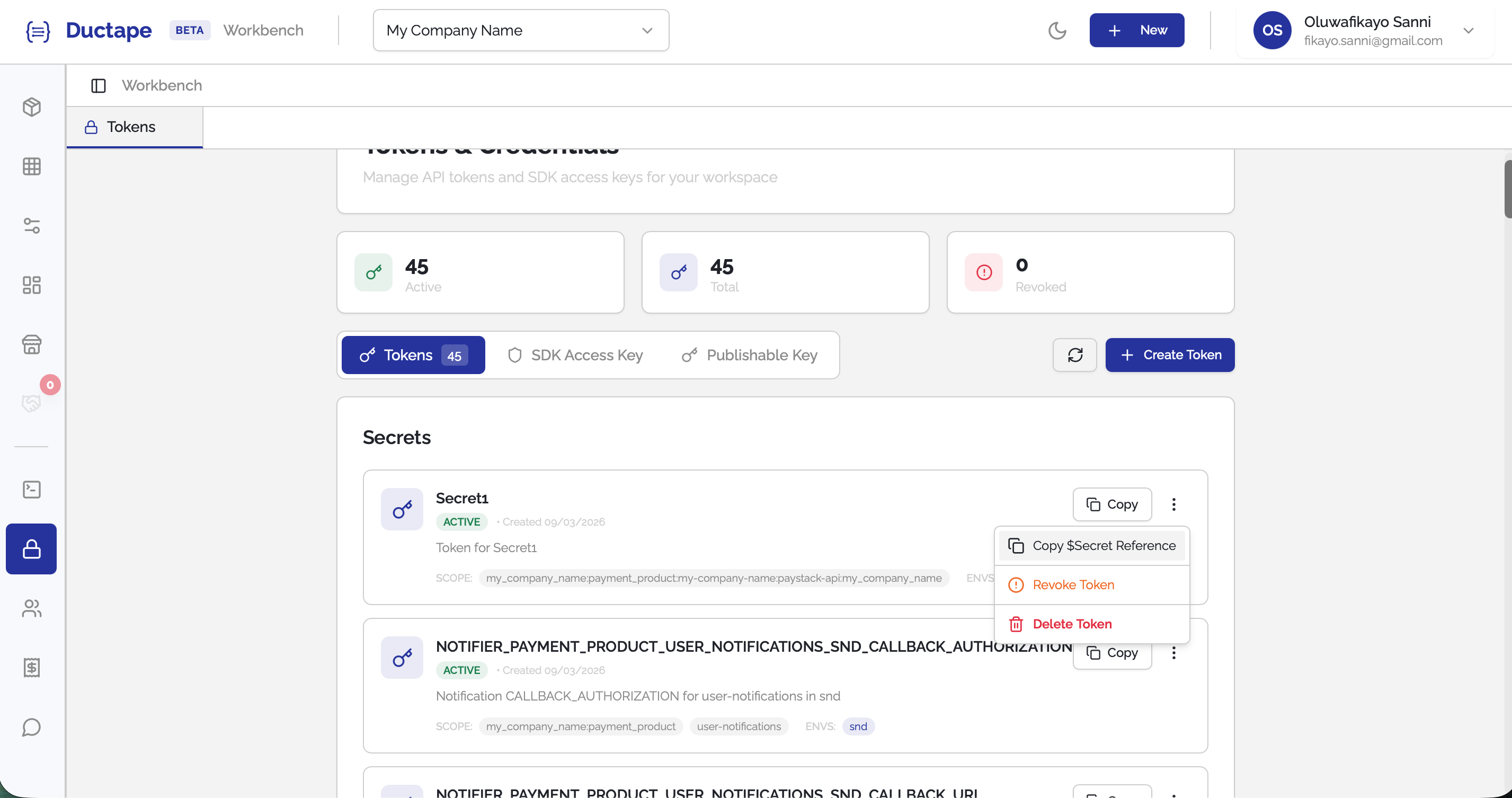
From there you can:
- Edit the token
- Revoke access
- Delete it permanently
Warning: Revoking or deleting a token will immediately break any services currently using it.
Step 8: Referencing Tokens in Configurations
You can reference tokens directly in your product configurations using the $Secret{KEY} syntax.
Simply copy the $Secret notation and replace the key with the token identifier.
Example:
$Secret{PAYMENT_API_KEY}
$Secret{STRIPE_SECRET}
$Secret{INTERNAL_SERVICE_TOKEN}
This allows your applications to securely access token values without exposing the raw credential in configuration files or code.
Important: The actual token value is never exposed in plaintext. The platform resolves the
$Secret{KEY}reference securely at runtime.