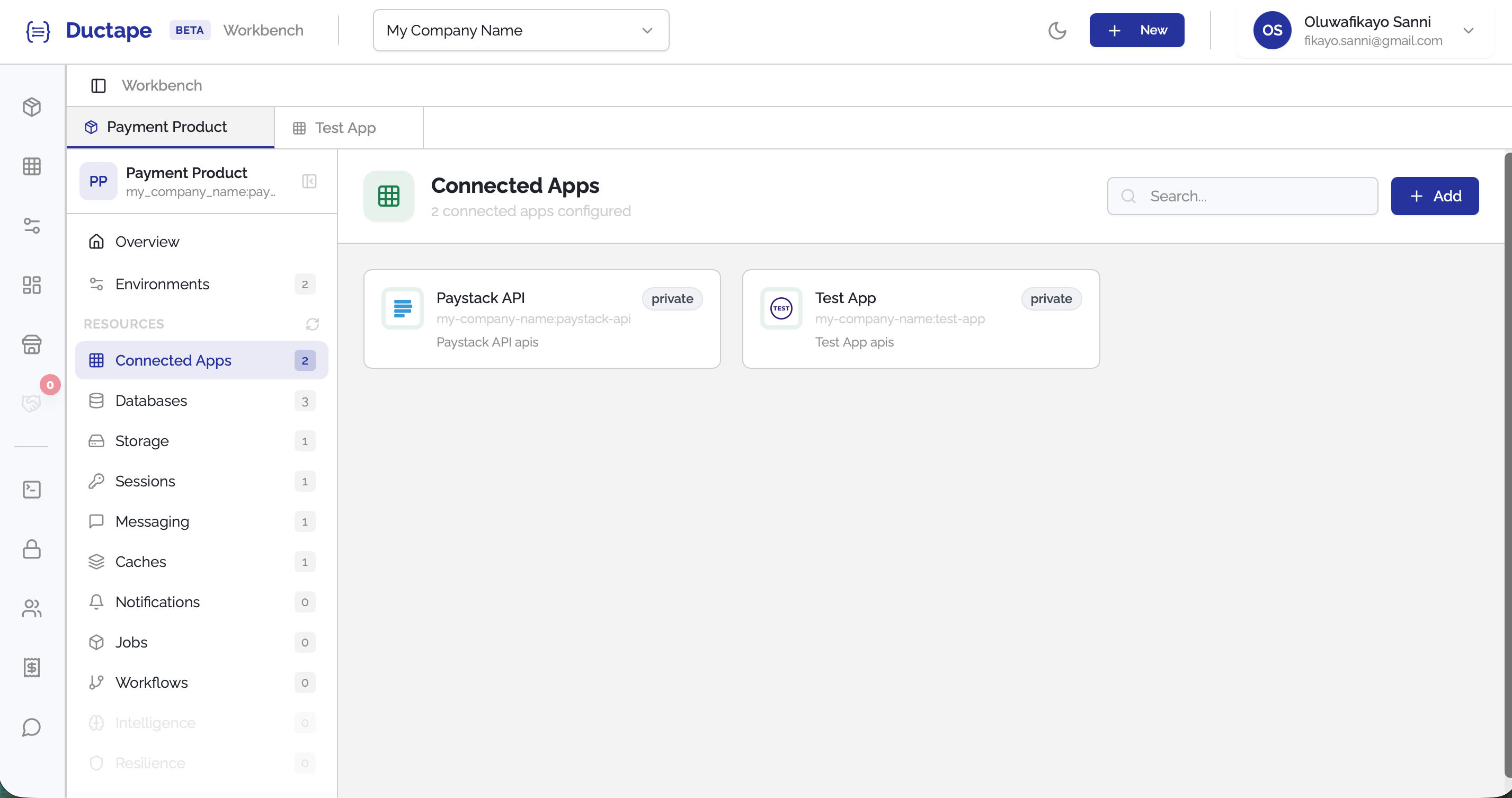
Connecting an App to a Product
Once you have created an App and a Product, you can connect them so the app's actions become available inside the product.
Apps can be connected from either the Product Overview page or the Connected Apps tab.
Step 1: Open the Product
- Navigate to your Workspace.
- Open the Product you want to configure.
This will take you to the Product Overview page.
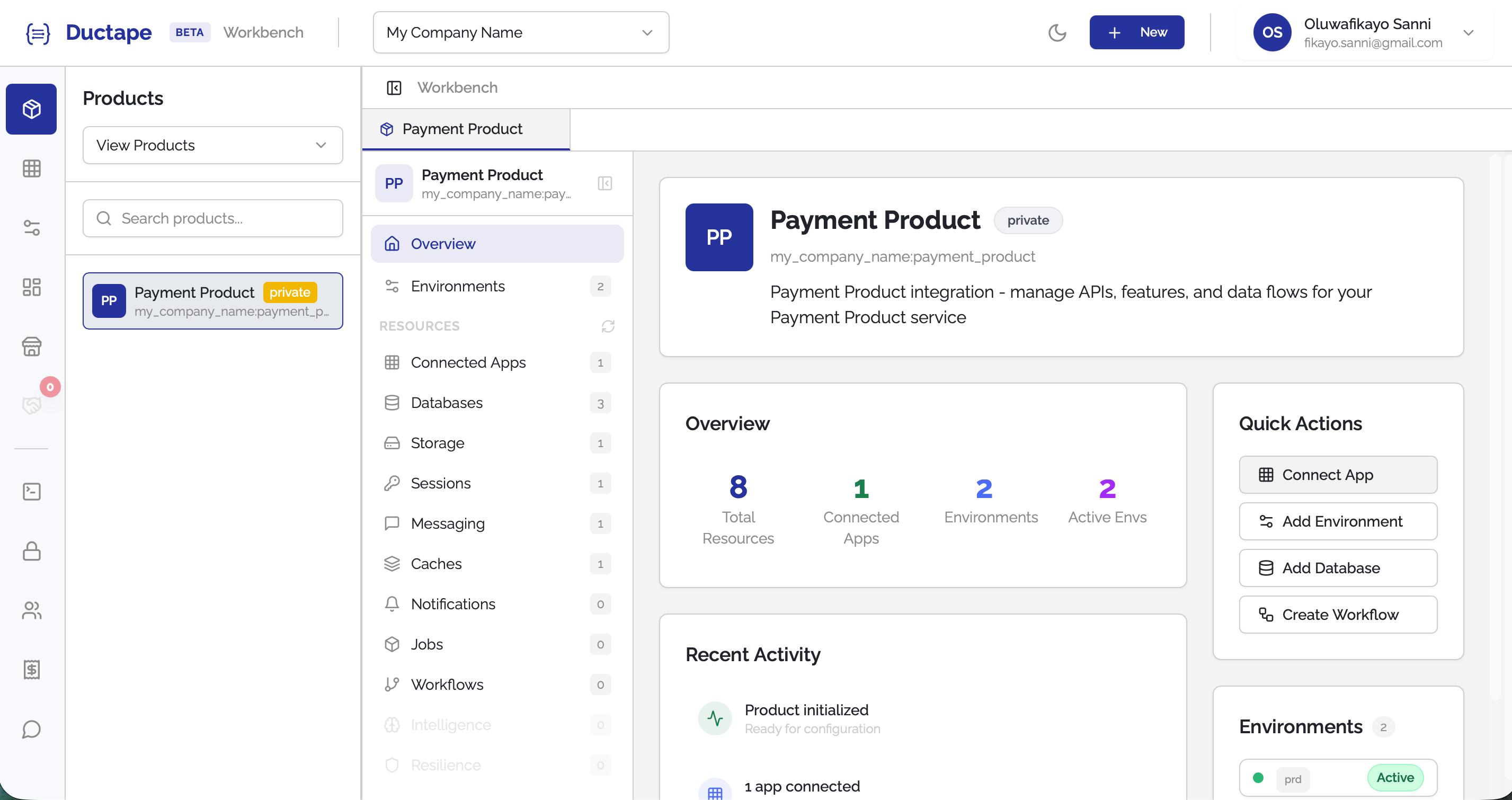
Step 2: Start the Connect App Flow
You can start the connection process in two ways.
Option 1: From Quick Actions
- On the Product Overview page, locate Quick Actions.
- Click Connect App.
Option 2: From the Connected Apps Tab
- Click Connected Apps in the product sidebar.
- Click the Add button.
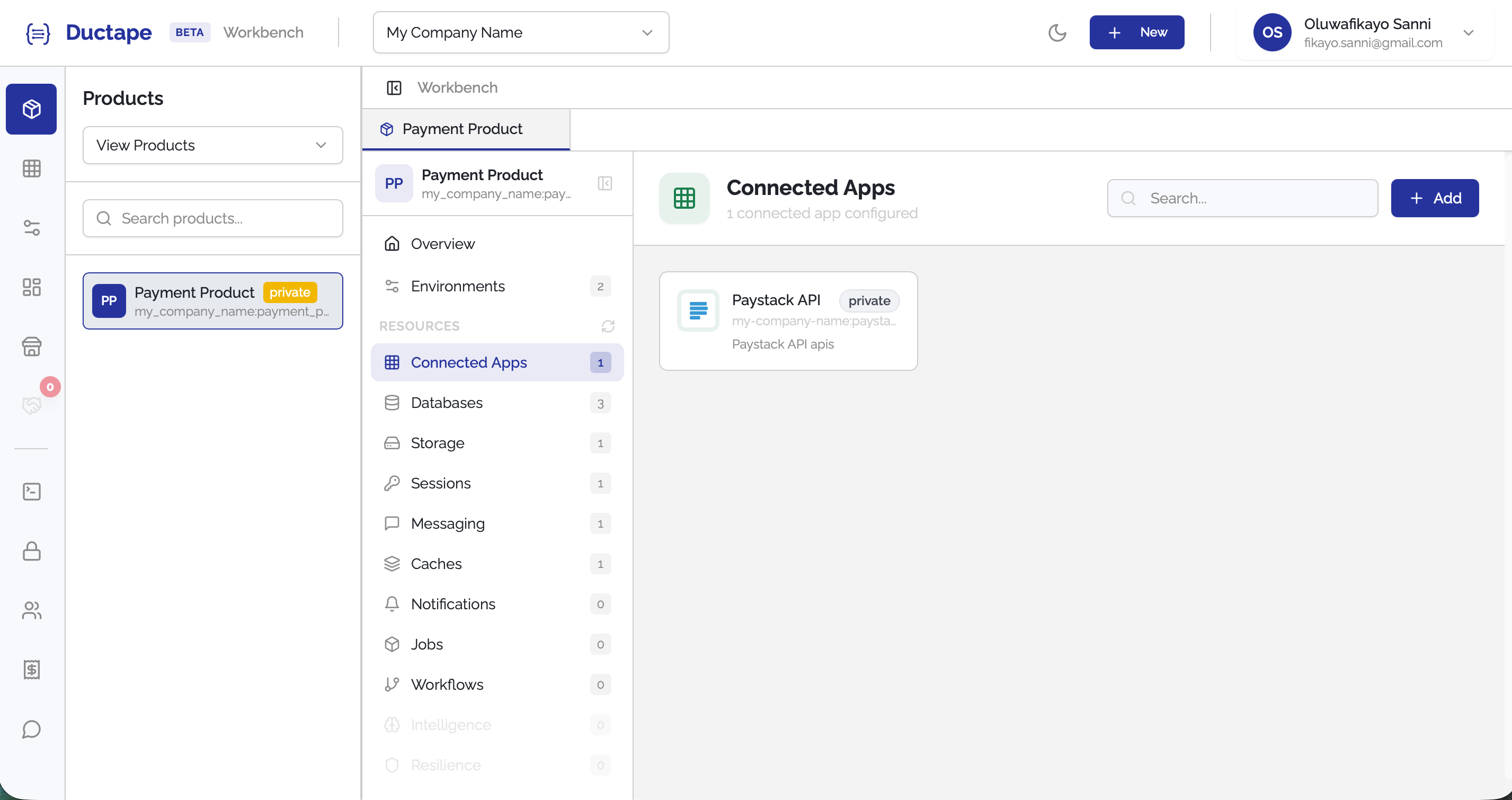
Step 3: Choose How to Add the App
You will see three options for adding an app:
| Option | Description |
|---|---|
| Add Workspace App | Connect an app that already exists in your workspace |
| Import App | Import a new app by uploading API documentation |
| Add from Marketplace | Browse and install apps from the Ductape Marketplace |
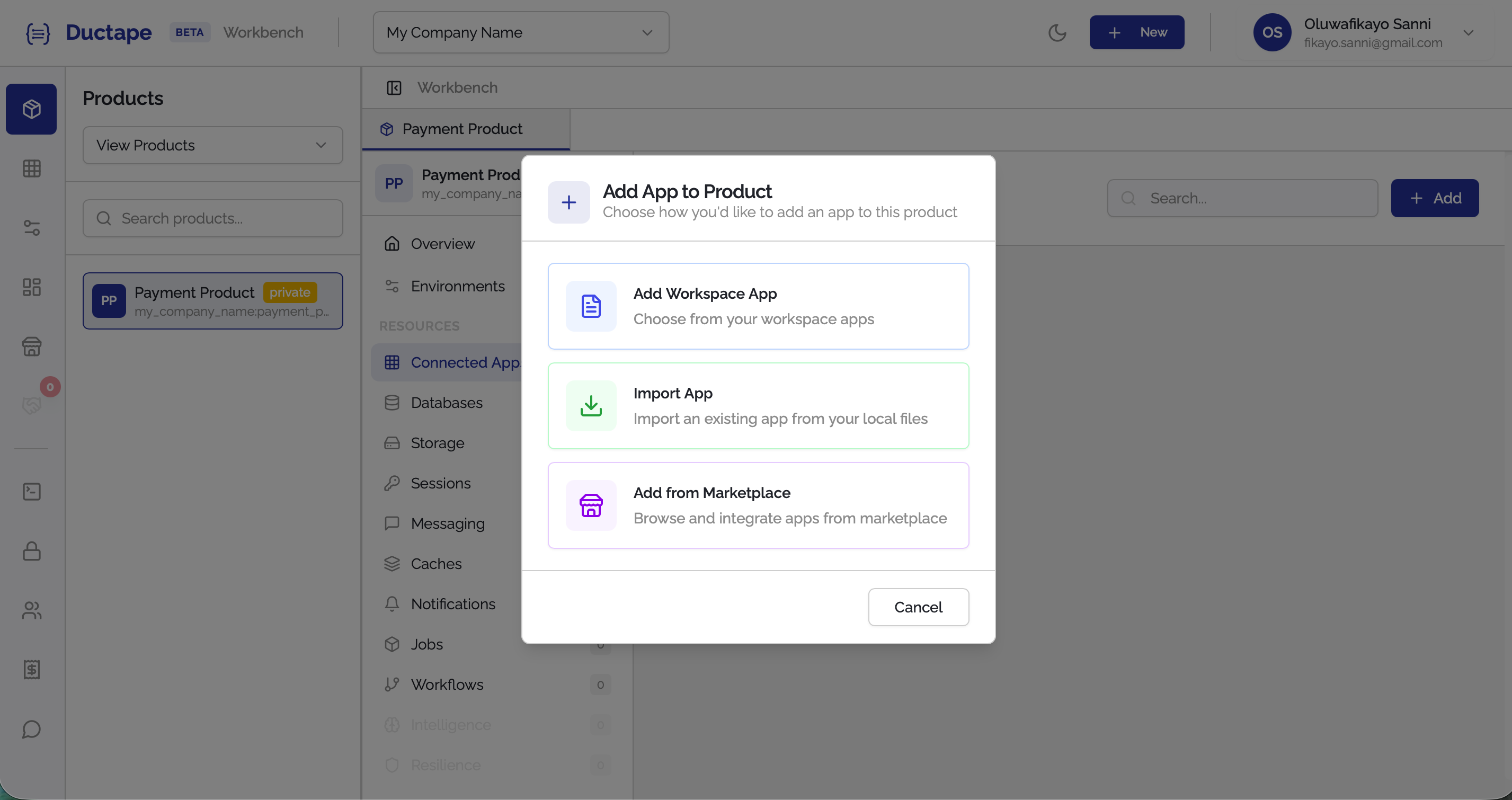
Step 4: Select or Import the App
Depending on the option you choose:
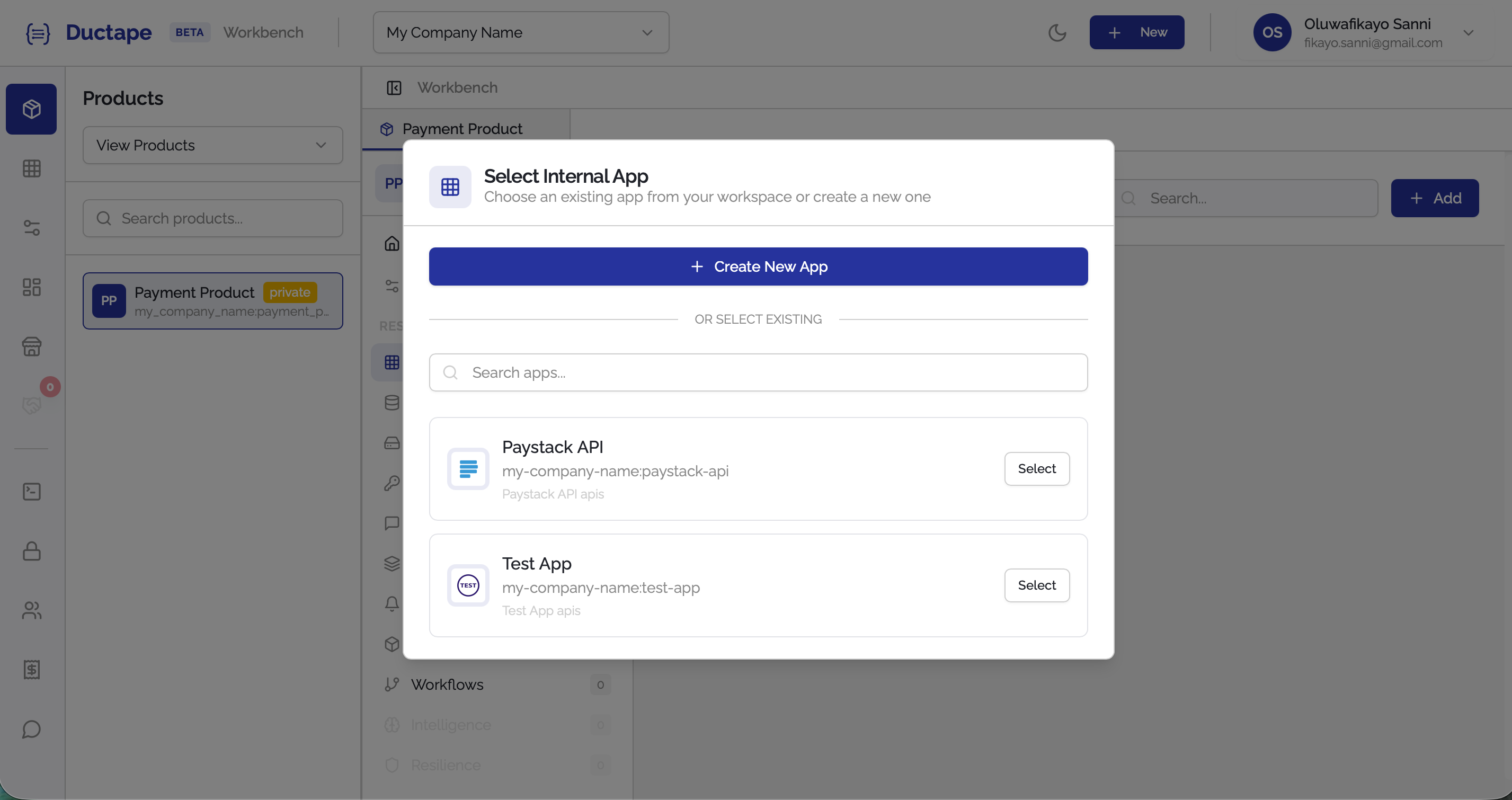
- Add Workspace App → A modal appears showing your internal apps, with the option to create a new one.
- Import App → Opens the Import App Docs modal.
- Add from Marketplace → Redirects you to the Ductape Marketplace.
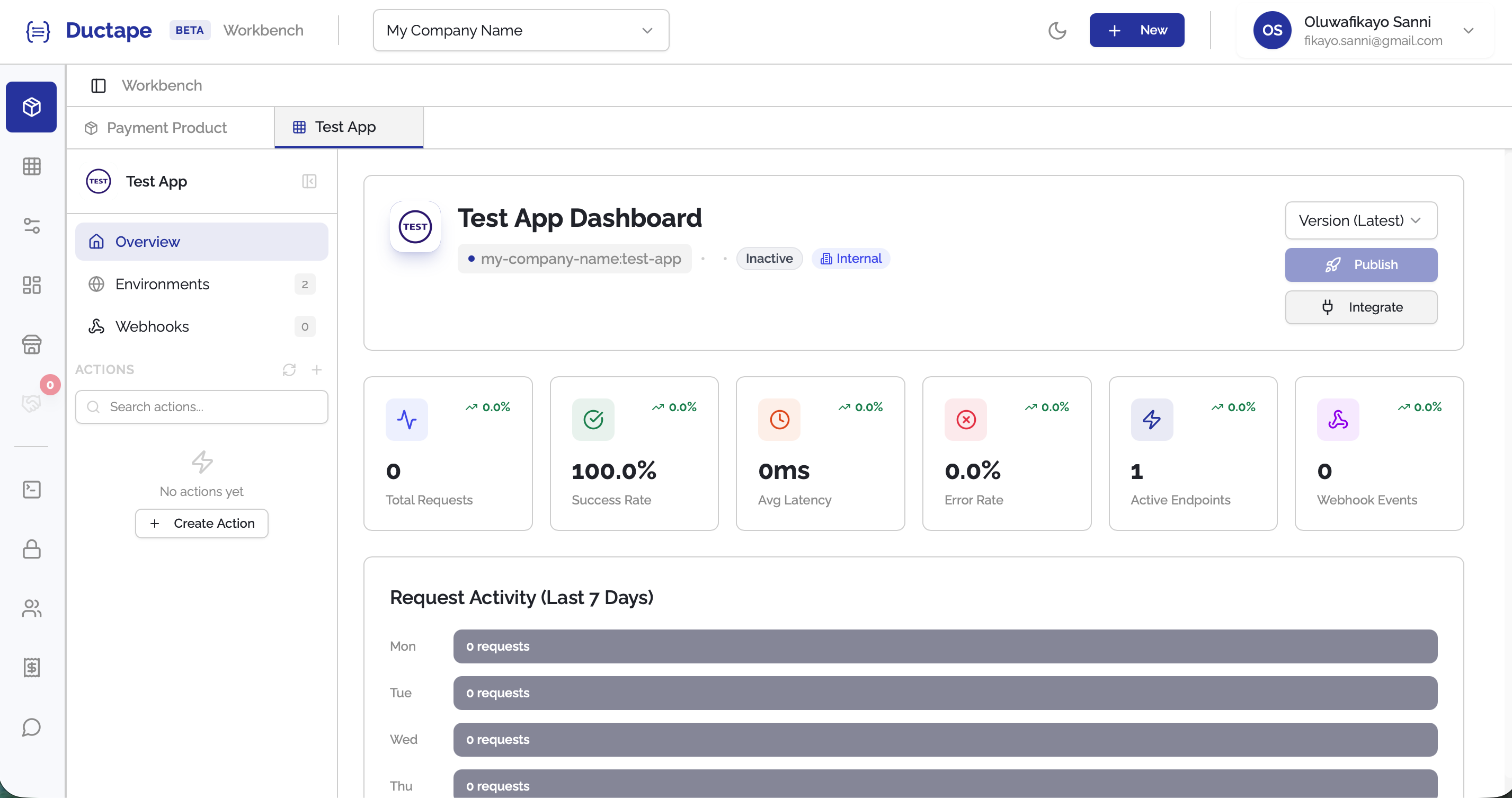
After selecting or importing an app, you will be taken to the App Overview page.
Step 5: Click Integrate
- On the App Overview page, click the Integrate button.
- A modal will appear asking which Product you want to connect the app to.
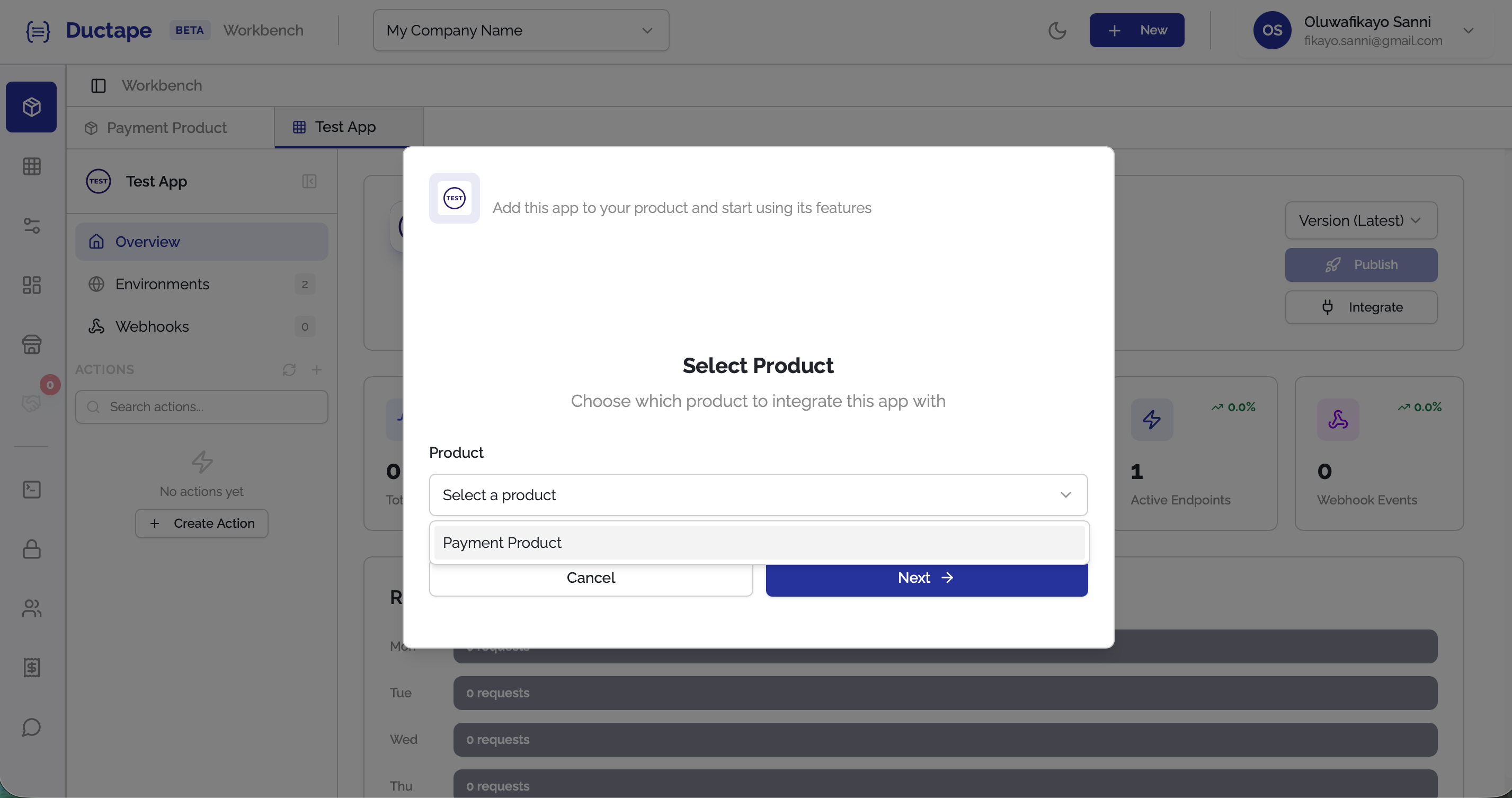
- Select the product and click Next.
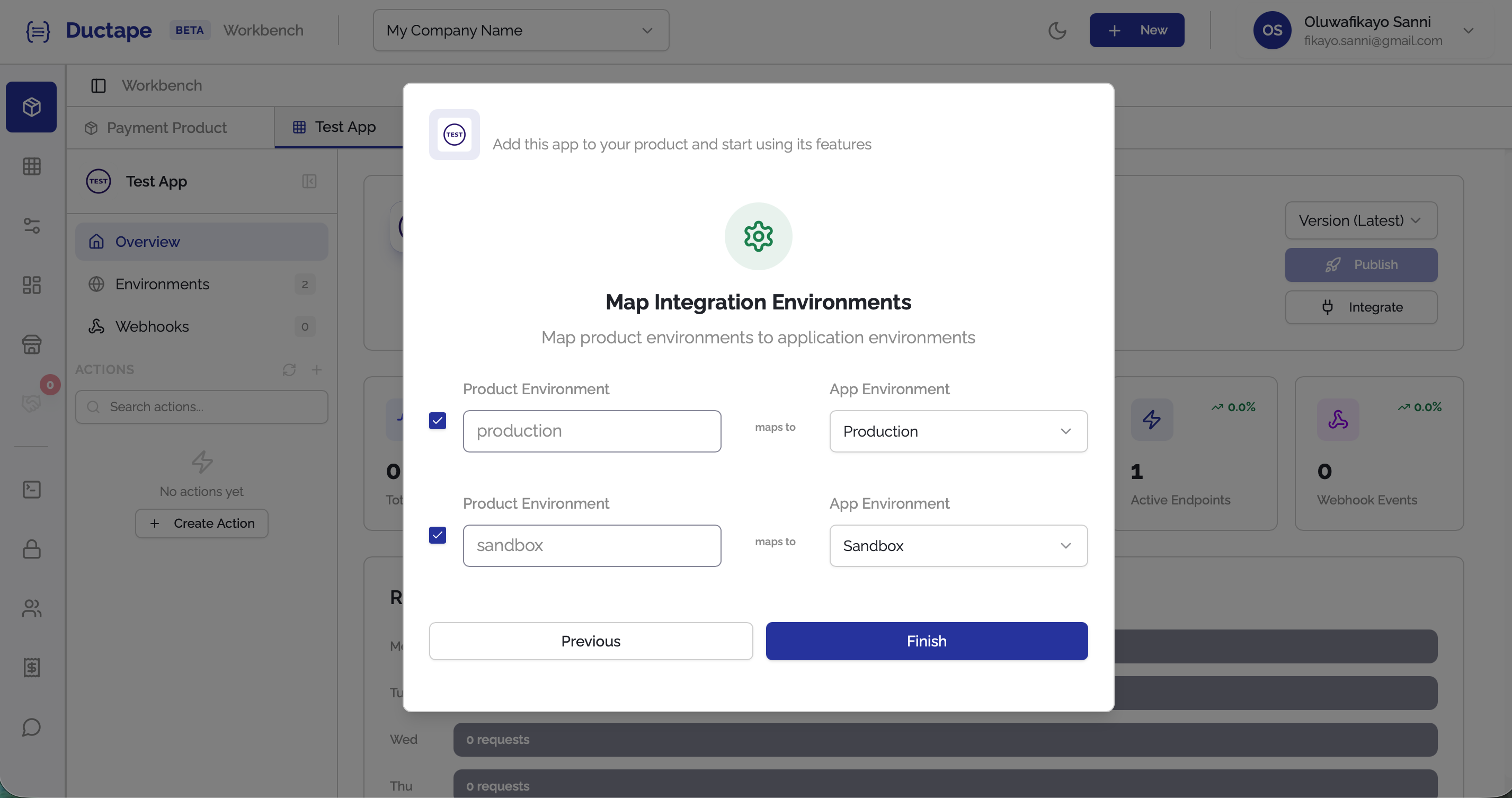
Step 6: Map Environments
Next, map the product environments to the app environments.
This ensures requests from the product are routed to the correct environment of the app.
| Product Environment | App Environment |
|---|---|
| Production | Production |
| Sandbox | Sandbox |
- Select the appropriate mappings.
- Click Finish.
Step 7: Confirm the Connection
- A success modal will appear confirming the integration.
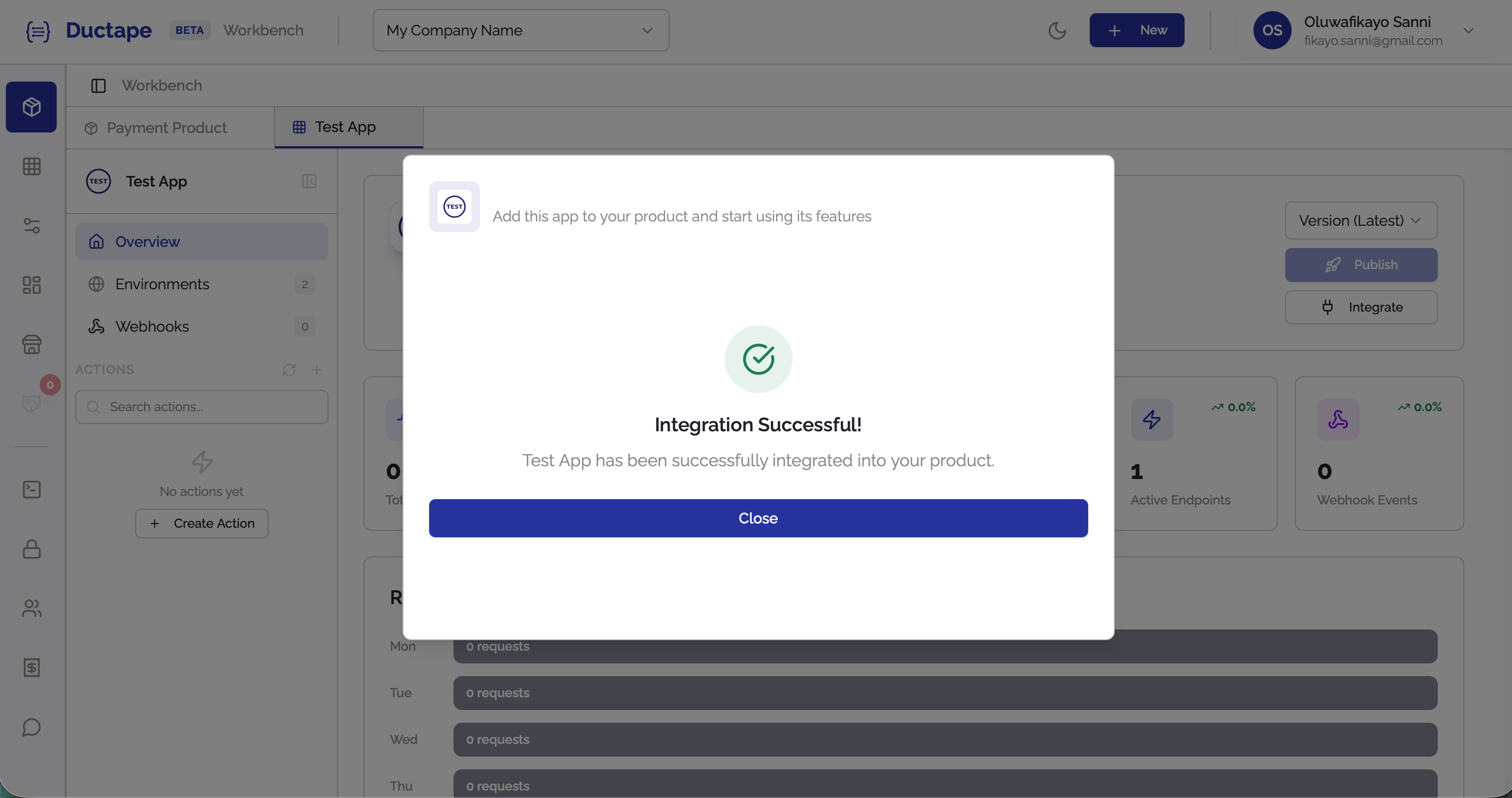
- Close the modal.
To verify the connection:
- Return to the Product Sidebar.
- Click the Refresh button.
- Open Connected Apps.
Your app should now appear in the connected apps list.