SDK Access Keys
SDK keys allow your applications to securely interact with your workspace resources. These keys enable backend systems and frontend applications to communicate with your workspace APIs and services.
You can manage these keys from the Tokens section in your workspace.
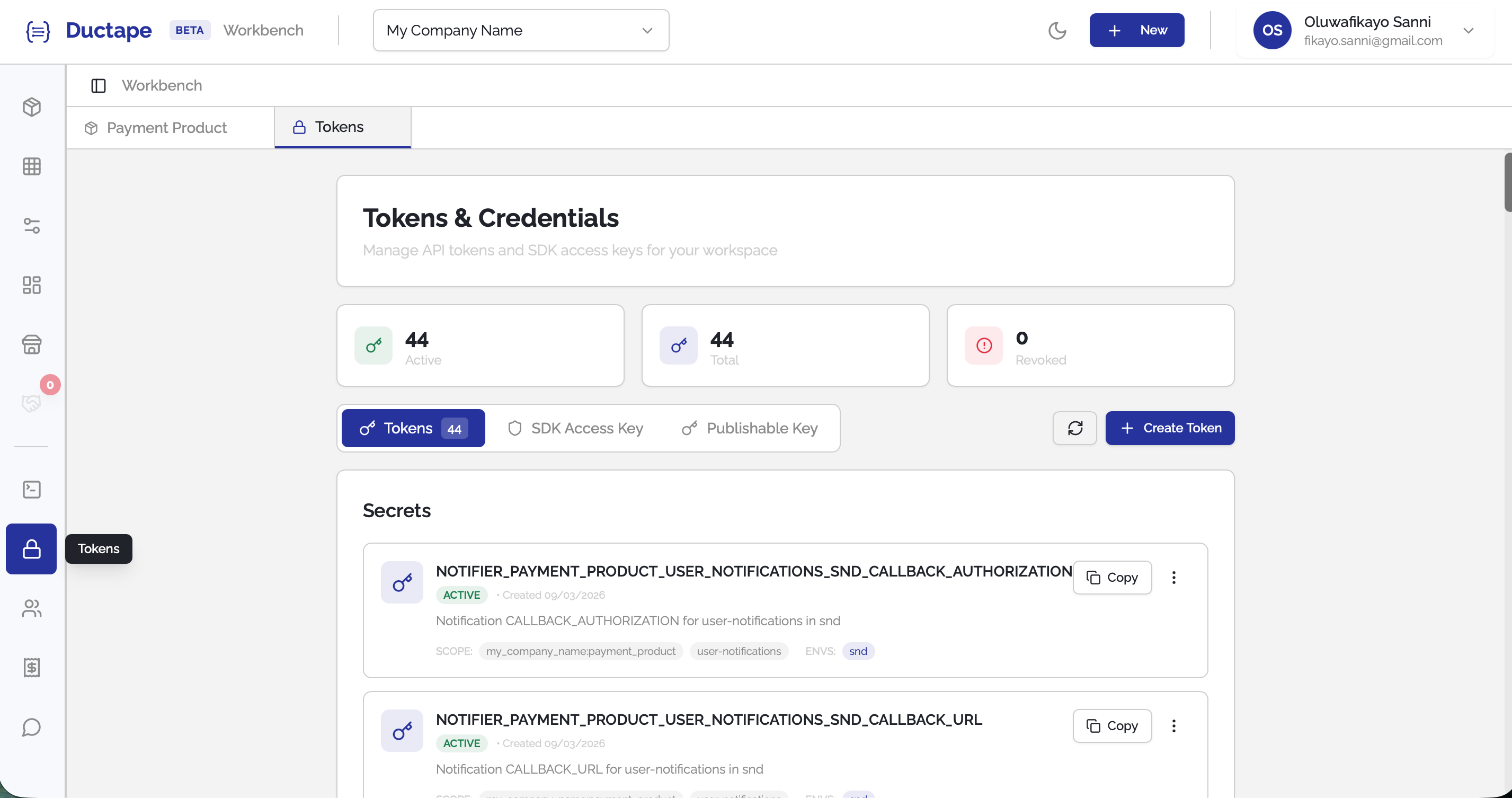
Step 1: Open the Tokens Page
- In your workspace sidebar, click Tokens.
- The Tokens page will open with three tabs:
- Tokens – Manage workspace tokens and secrets
- SDK Access Key – Access your backend SDK key
- Publishable Key – Manage the frontend SDK key
SDK Access Key
The SDK Access Key is used by backend systems to securely access workspace resources programmatically.
Examples include:
- Server-side SDK usage
- Backend integrations
- Secure service-to-service communication
Because this key grants elevated access, it is protected behind an OTP verification step.
Step 2: Reveal the SDK Access Key
- Click the SDK Access Key tab.
- You will see a password-style input field where the key is hidden.
- Click Reveal Key.
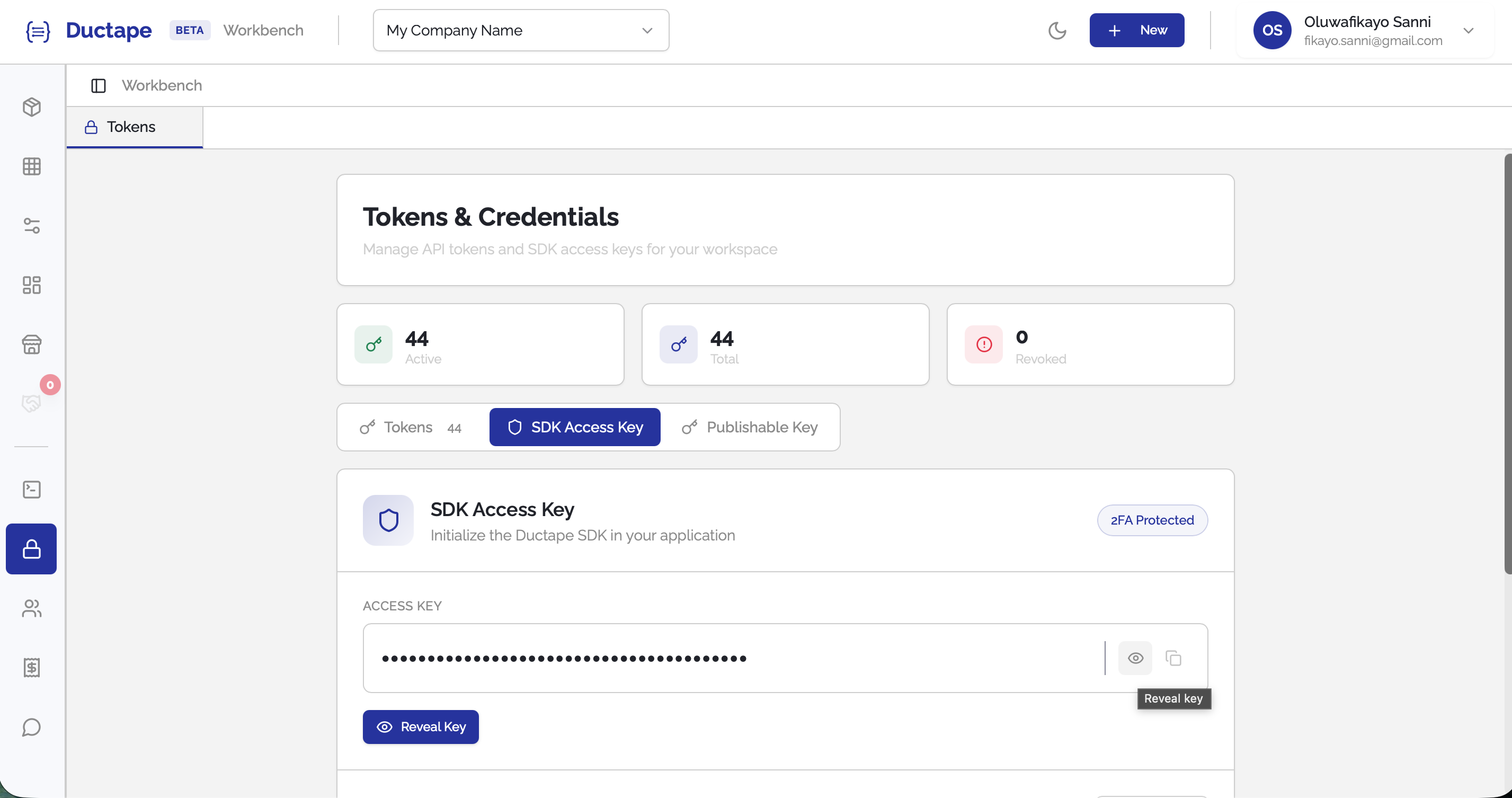
Once clicked:
- A One-Time Password (OTP) will automatically be sent to your registered email.
- A verification modal will immediately appear.
Step 3: Enter the OTP
- Enter the OTP sent to your email.
- Click Verify.
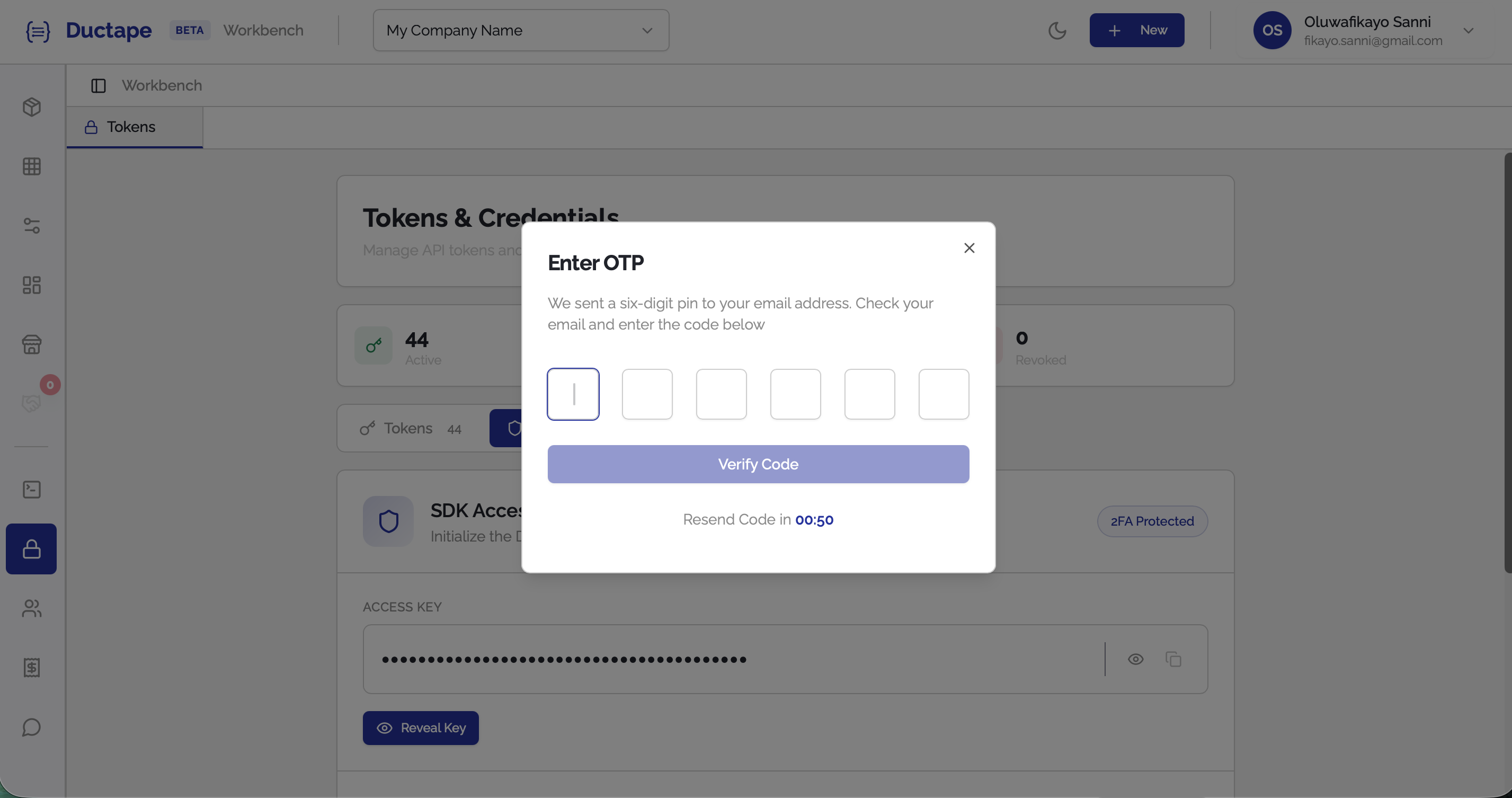
If the OTP is valid:
- The SDK access key will be revealed
- It will appear in place of the obfuscated password field
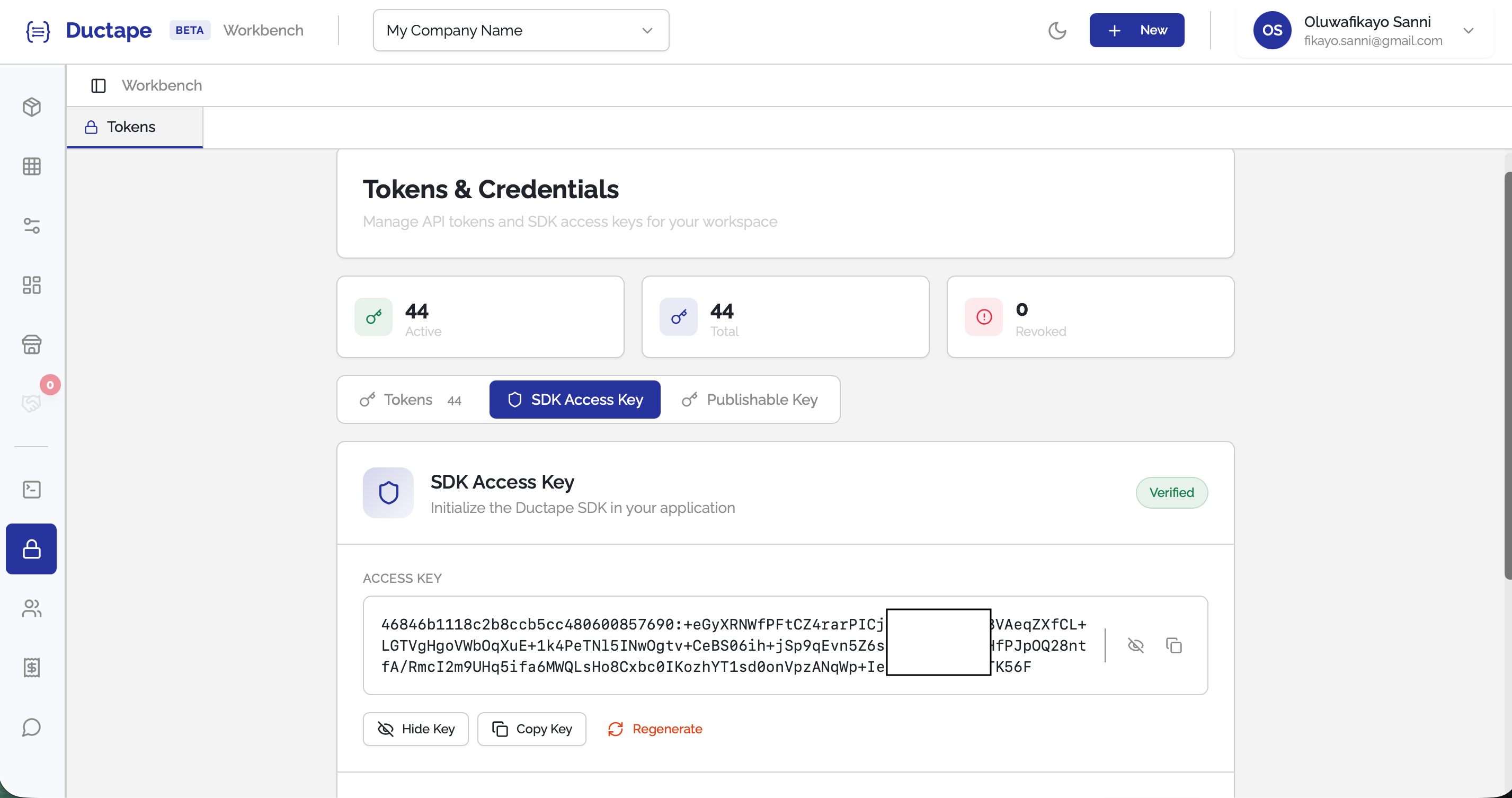
You can now copy and use this key in your backend services.
Important: Treat this key like a password. Never expose it in frontend applications or public repositories.
Publishable Key
The Publishable Key is designed for frontend environments such as web apps, mobile apps, or client-side SDKs.
Unlike the SDK access key, this key is safe to expose in frontend code but can still be restricted.
Step 4: View the Publishable Key
- Click the Publishable Key tab.
- The publishable key will immediately be displayed.
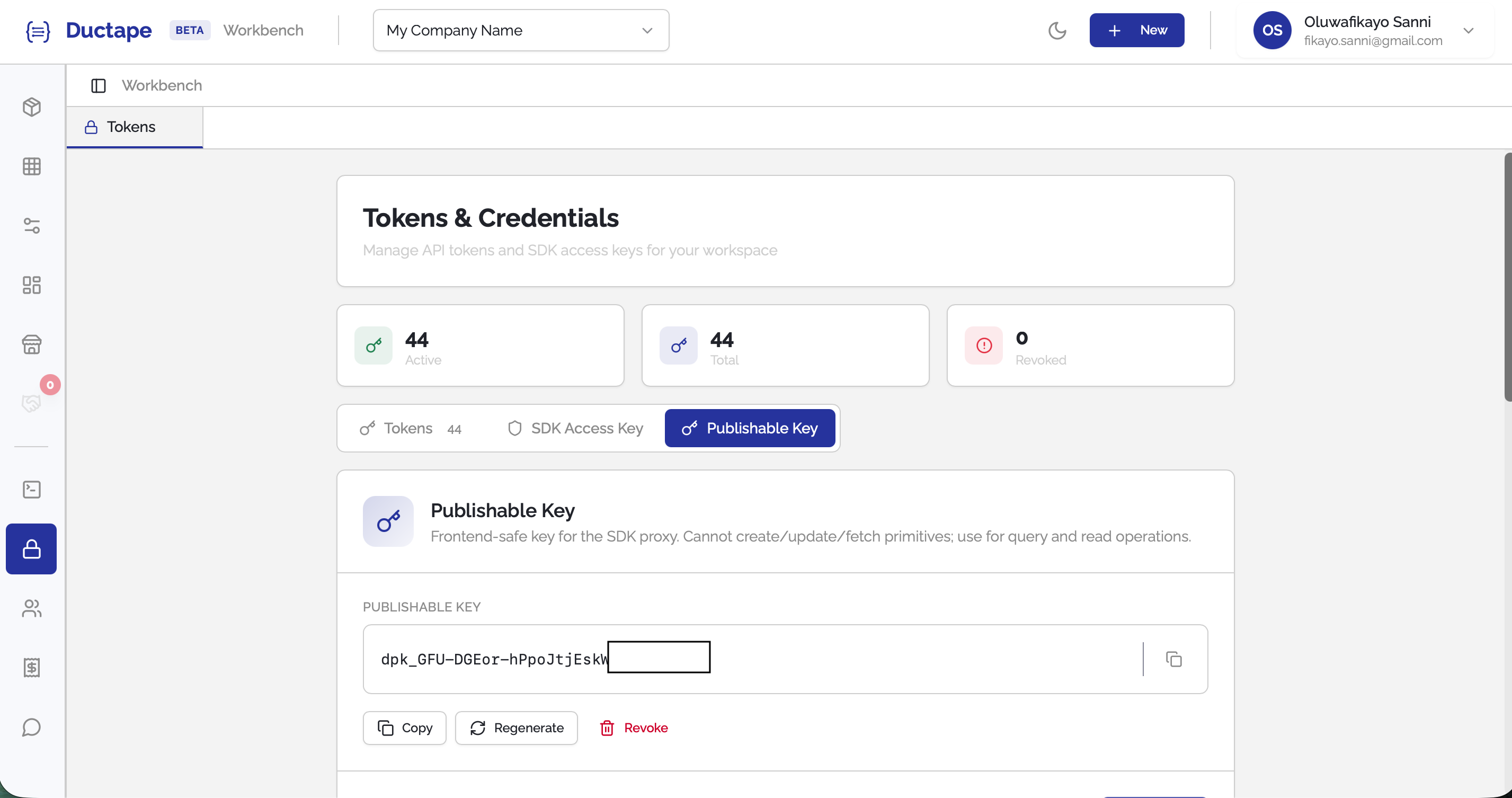
You can copy and use it in your frontend SDK integrations.
Step 5: Revoke and Regenerate the Key
You can rotate the publishable key at any time.
- Click Revoke Key.
- Confirm the action.
A new publishable key will be generated.
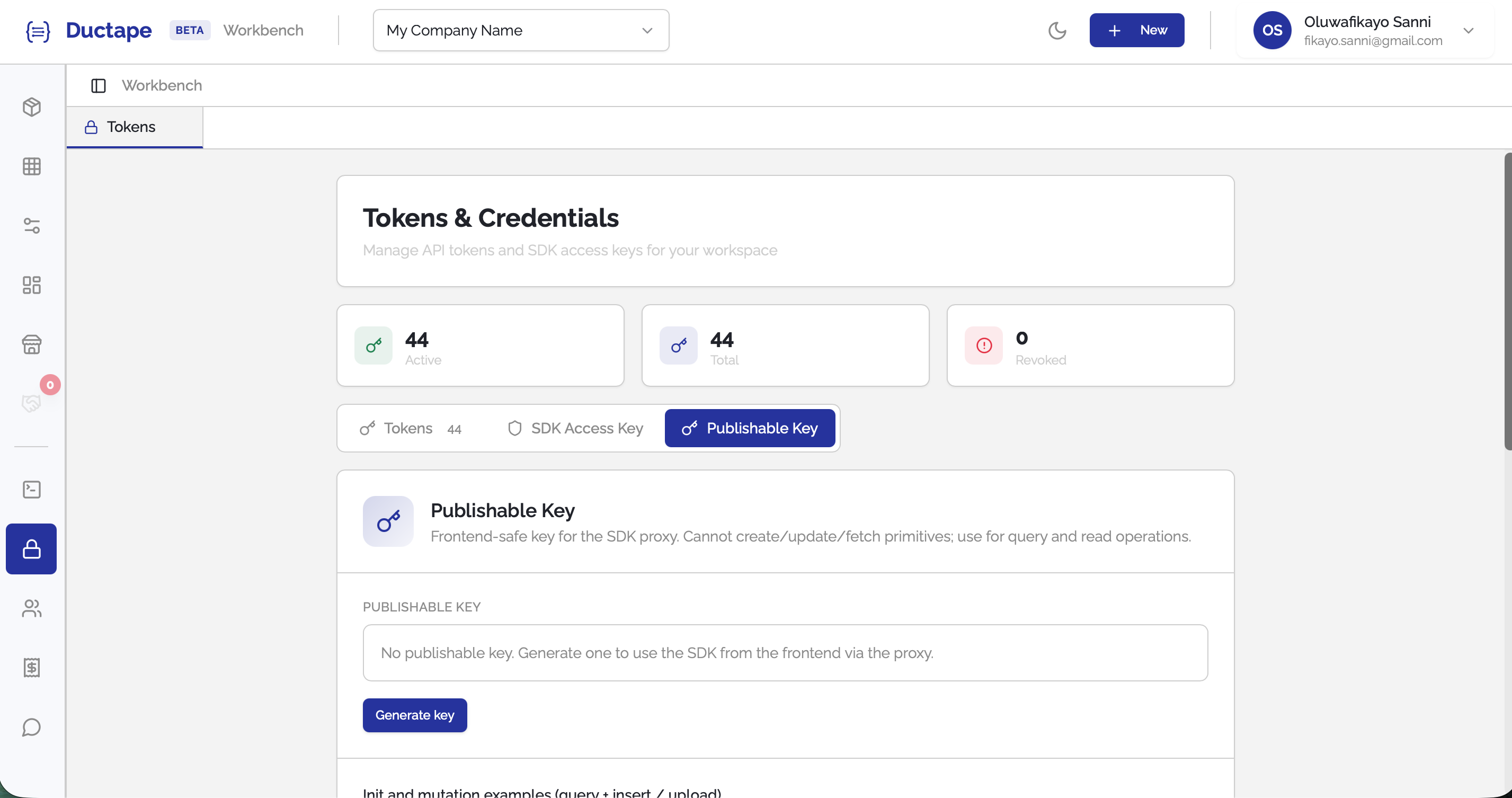
Warning: Revoking a key immediately invalidates the previous key. Any systems still using the old key will start failing.
Step 6: Restrict Publishable Key Actions
You can limit what the publishable key is allowed to do.
- Click Blacklist Action.
- Select the module you want to restrict.
- Select the functionality you want to disallow.
- Save the restriction.
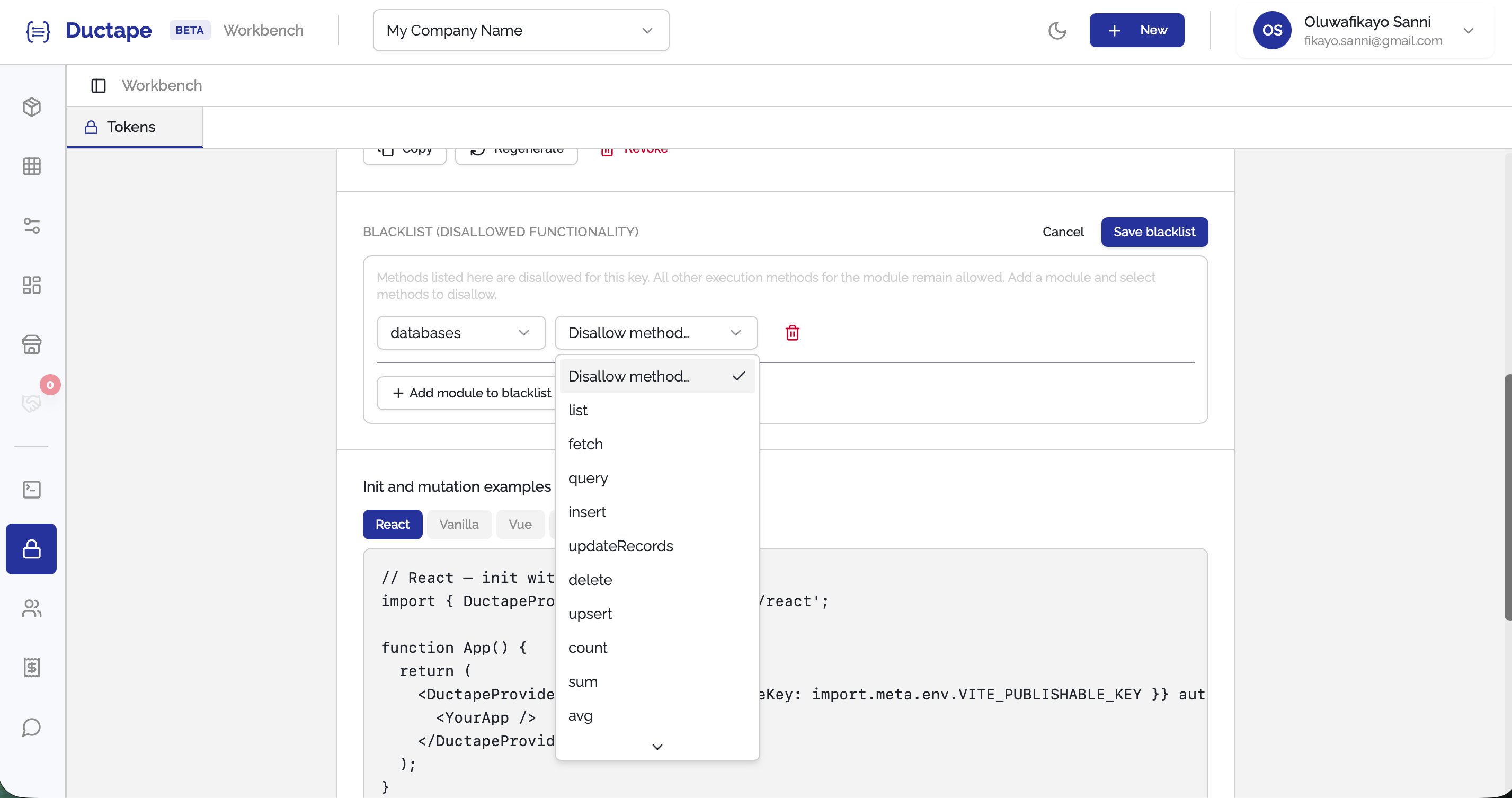
You can create multiple blacklist rules to further limit access.