Setting up Storage
Ductape allows you to connect cloud storage providers to your product so it can store and retrieve files during features and actions.
Supported providers include AWS S3, Google Cloud Storage, and Azure Blob Storage.
Step 1: Open the Storage Section
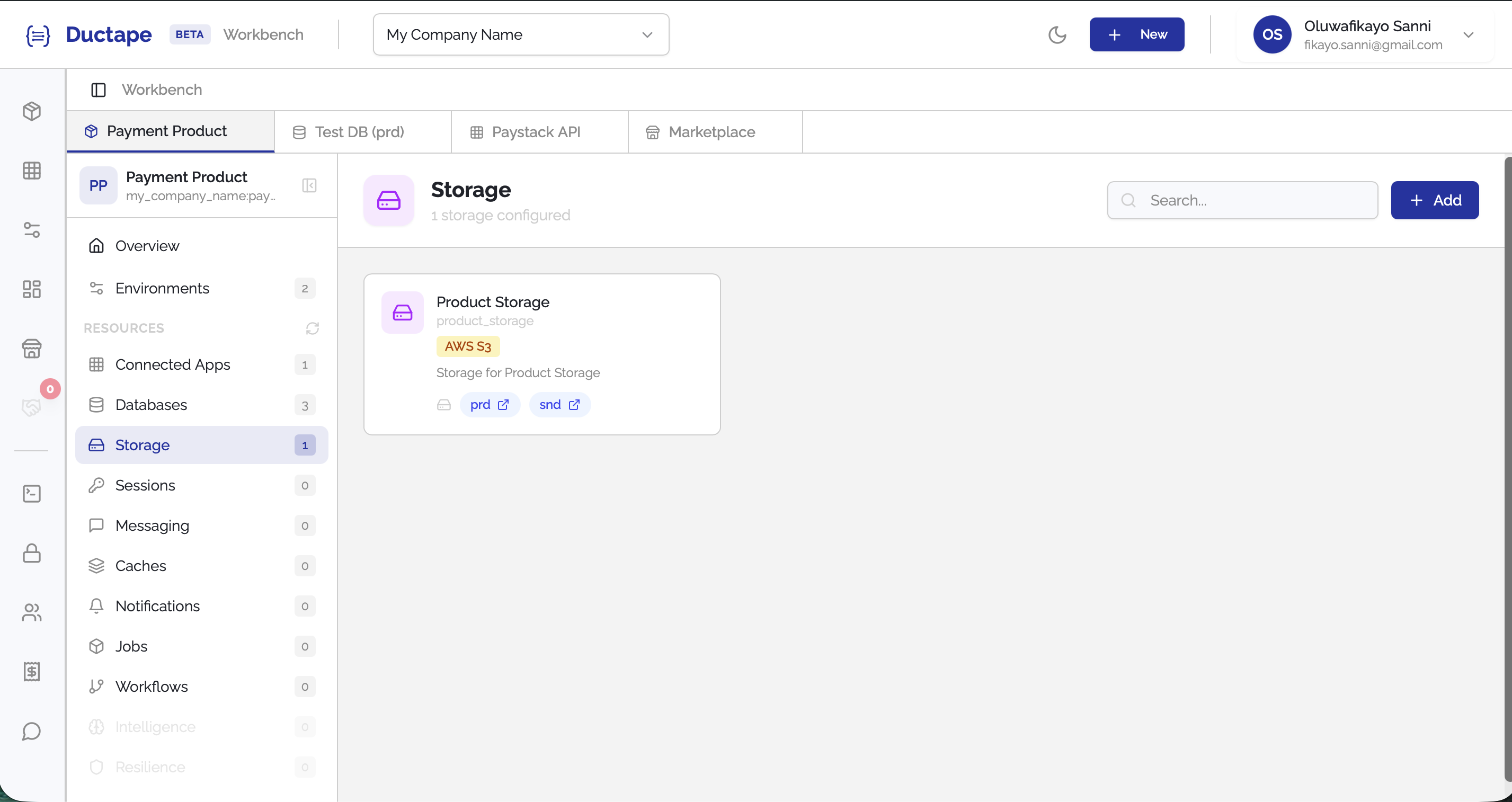
- Navigate to your Workspace.
- Open the Product you want to configure.
- In the sidebar, locate the Resources section.
- Click Storage.

Step 2: Click "Add"
- On the Storage page, click the Add button.
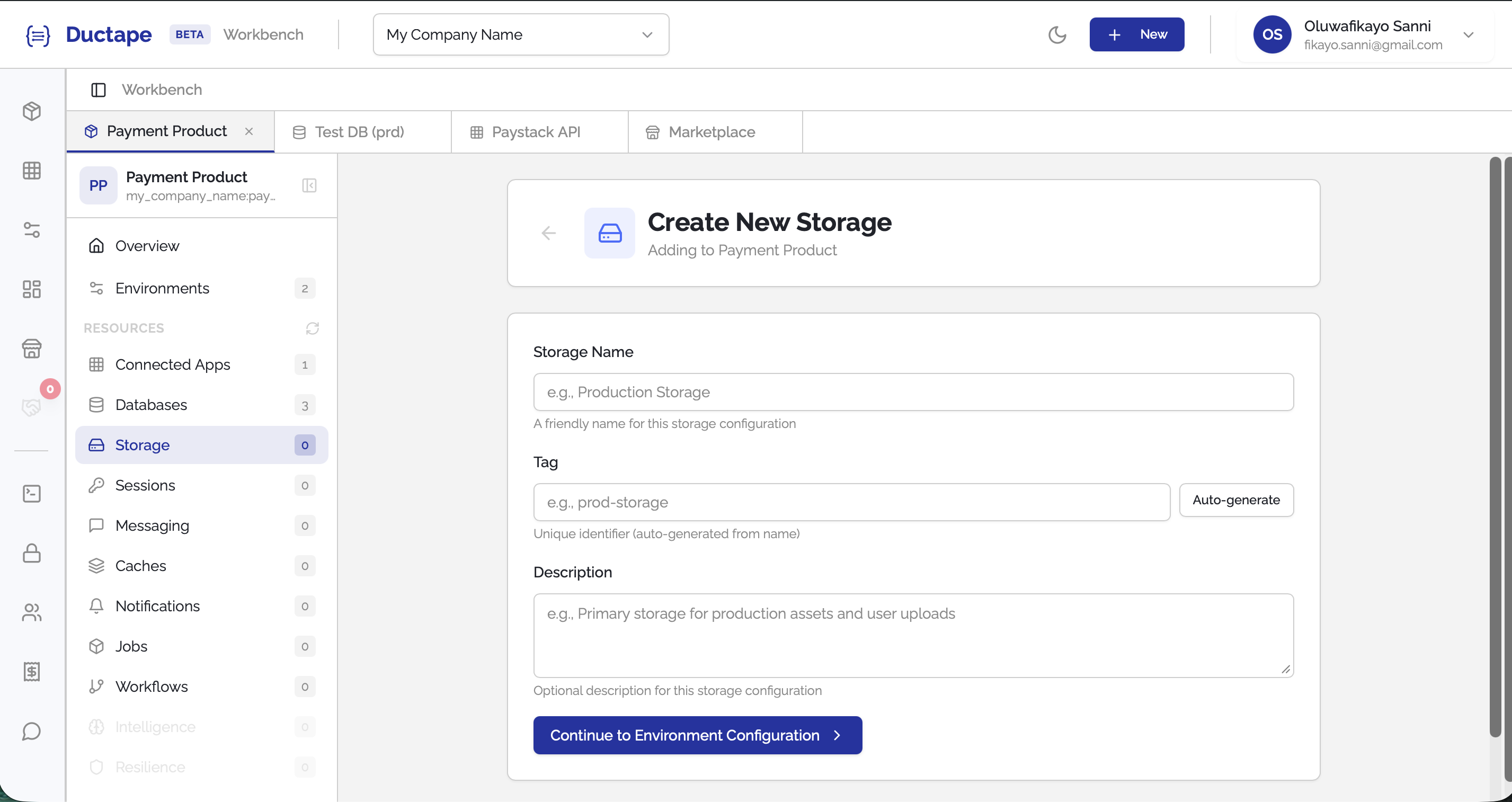
- A configuration form will appear.
Step 3: Configure the Storage
Fill in the following fields:
| Field | Description |
|---|---|
| Configuration Name | Human-readable name for the storage connection |
| Tag | Auto-generated unique identifier (editable) |
| Description | Description of the storage connection |
Step 4: Provide Connection Details
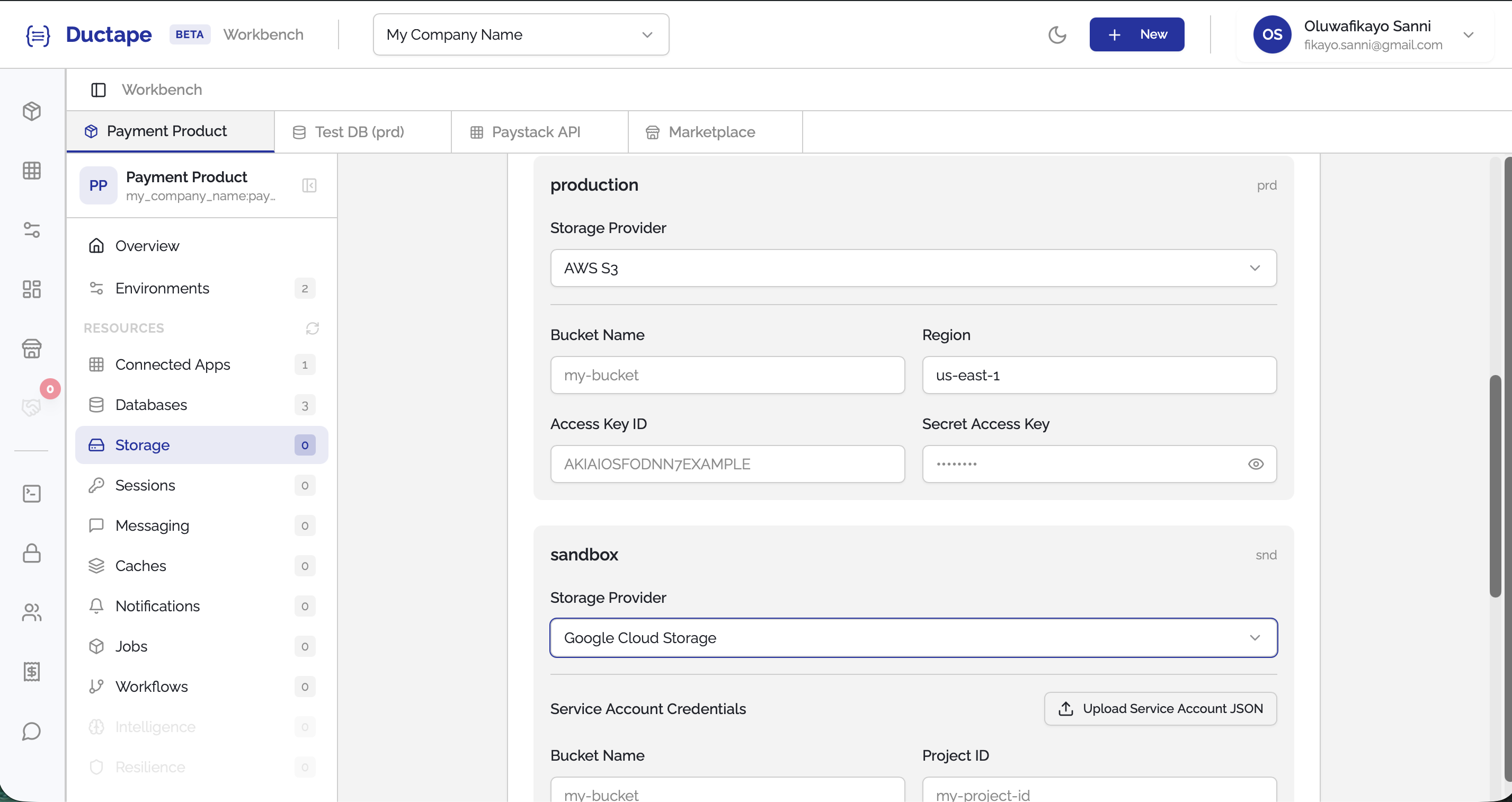
For each environment you have to select a provider type. After selecting the storage type, you will need to provide the required connection credentials for the provider.
Examples may include:
| Provider | Example Configuration |
|---|---|
| AWS S3 | Access Key, Secret Key, Bucket |
| Google Cloud Storage | Service Account Credentials |
| Azure Blob Storage | Account Name, Container, Access Key |
- Fill in the required connection details.
- Click Submit.
Step 5: Verify the Storage
After submitting:
- The storage configuration will appear in the Product Storage list.
- Your product can now read and write files using this storage provider.