Making Your App Ready for Use
Once you've configured your app's actions and variables, you can publish the app and control whether it is private for internal use or public on the Ductape Marketplace.
Step 1: Open the App Overview
- Navigate to your Workspace.
- Open the App you want to configure.
- Click Overview in the app's sidebar.

Step 2: Click "Publish"
- On the Overview page, click the Publish button.
- A Publish App modal will appear.
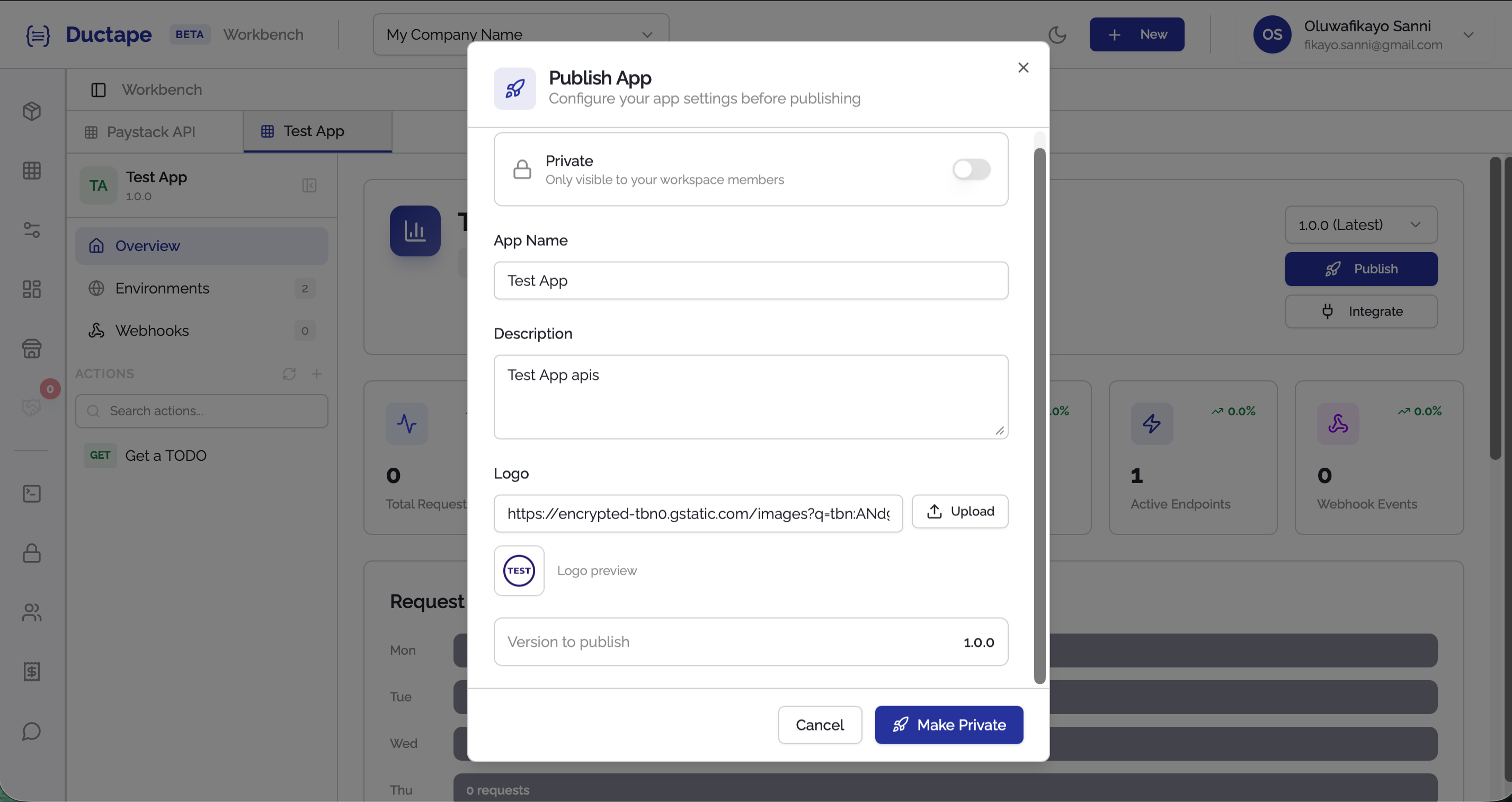
Step 3: Choose App Visibility
In the publish modal, choose how the app should be used.
| Option | Description |
|---|---|
| Private | The app is available only within your workspace as an internal tool |
| Public | The app is published to the Ductape Marketplace for others to discover |
If you choose Public, you must also select one or more Marketplace Categories.
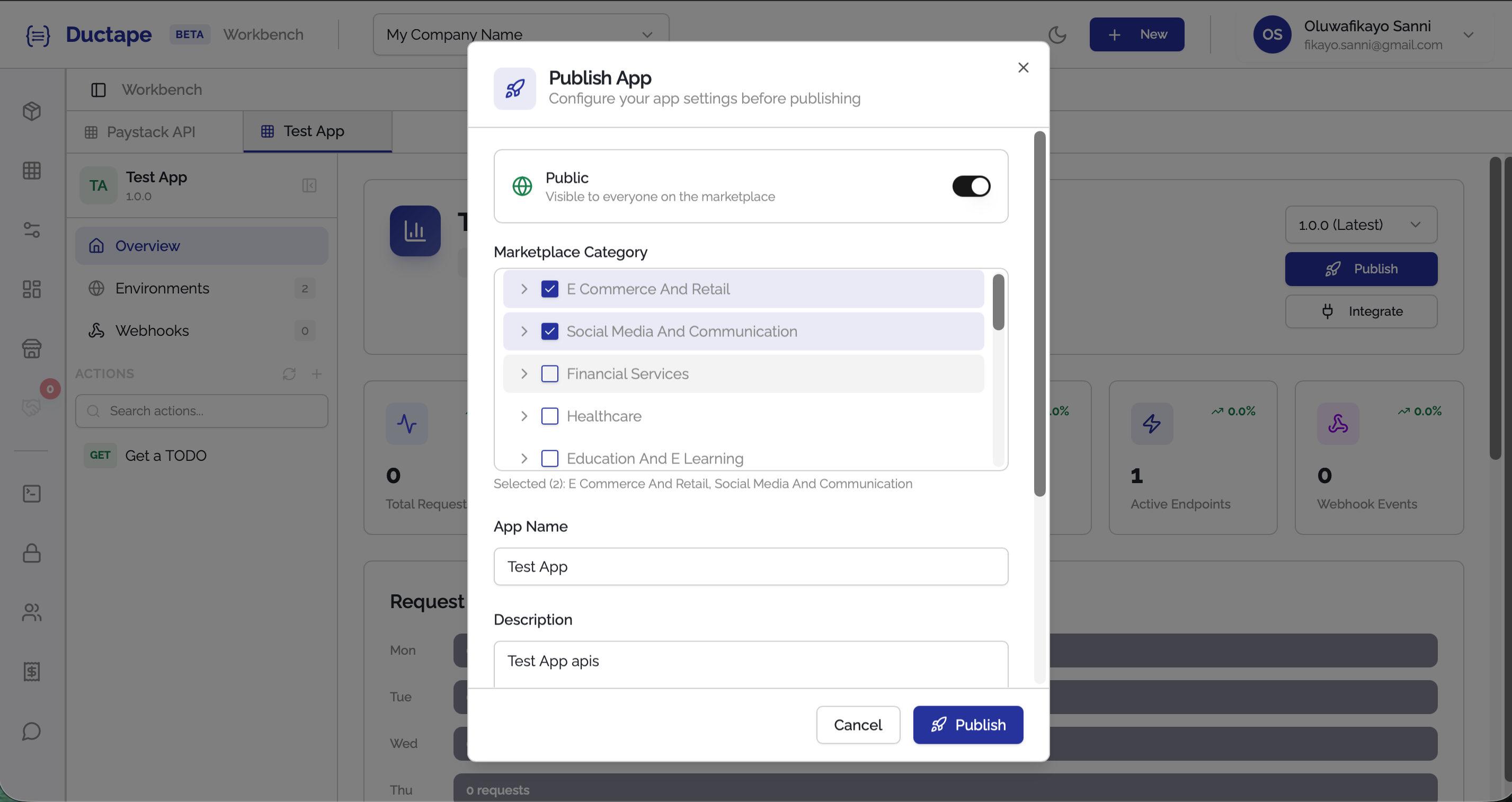
Step 4: Upload or Update App Logo (Optional)
You can optionally add or update the App Logo.
- Upload an image file, or
- Paste an image URL.
This is especially useful for public marketplace apps so users can easily identify your integration.
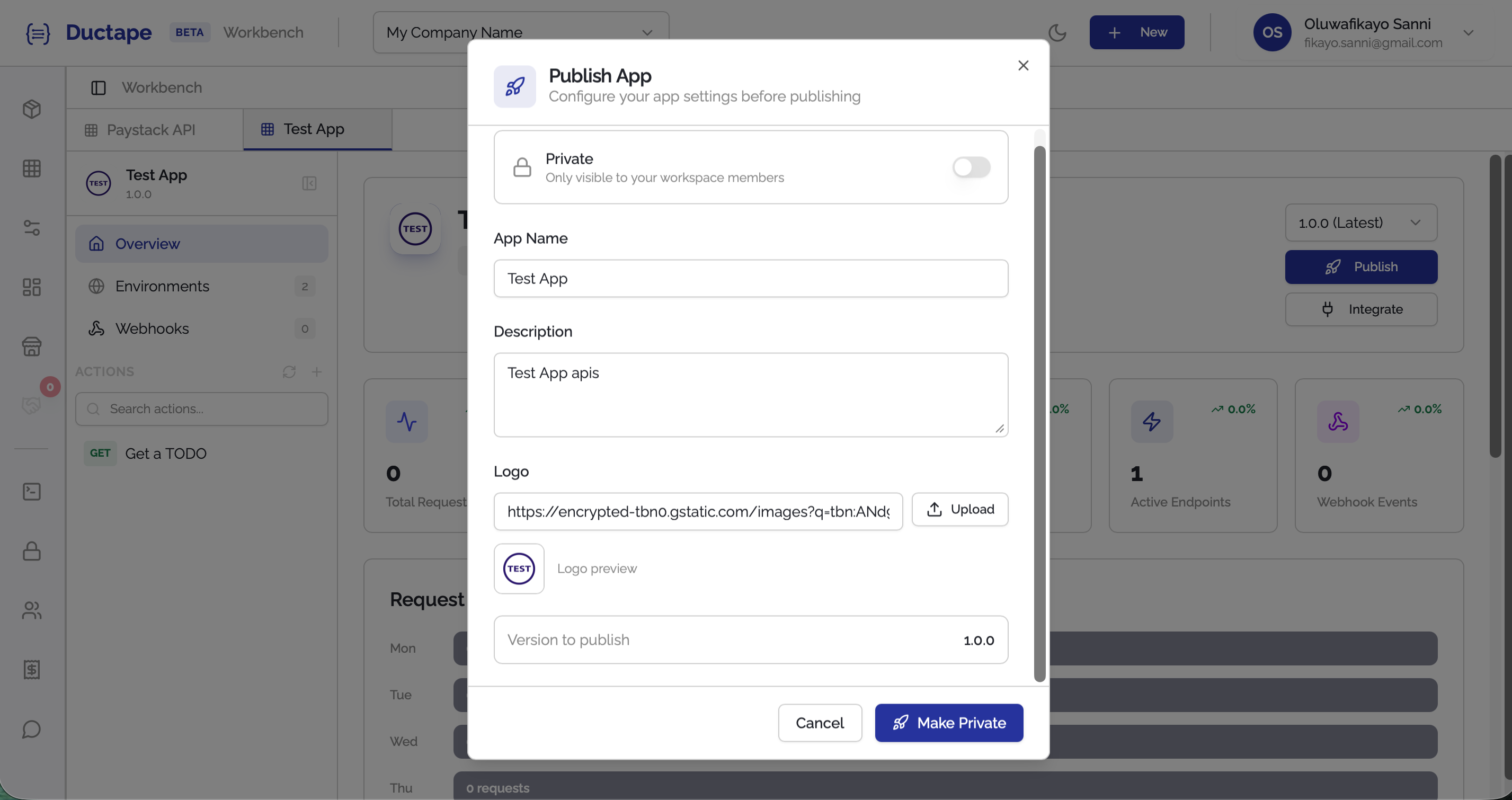
Step 5: Publish the App
- Click Publish to Marketplace if the app is public, or
- Click Make Private if the app is for internal use.
Once completed, the app will become available according to the selected visibility.